

The Forms module is the CSFaaS questionnaire builder. Use it to collect structured information, declarations and documents from people inside or outside your organisation: vendor security questionnaires for your third parties, technical self-assessments for your systems, or information requests attached to risk demands. Respondents answer through a secure link, without needing a CSFaaS account, and every answer flows back to the record the form was sent from.
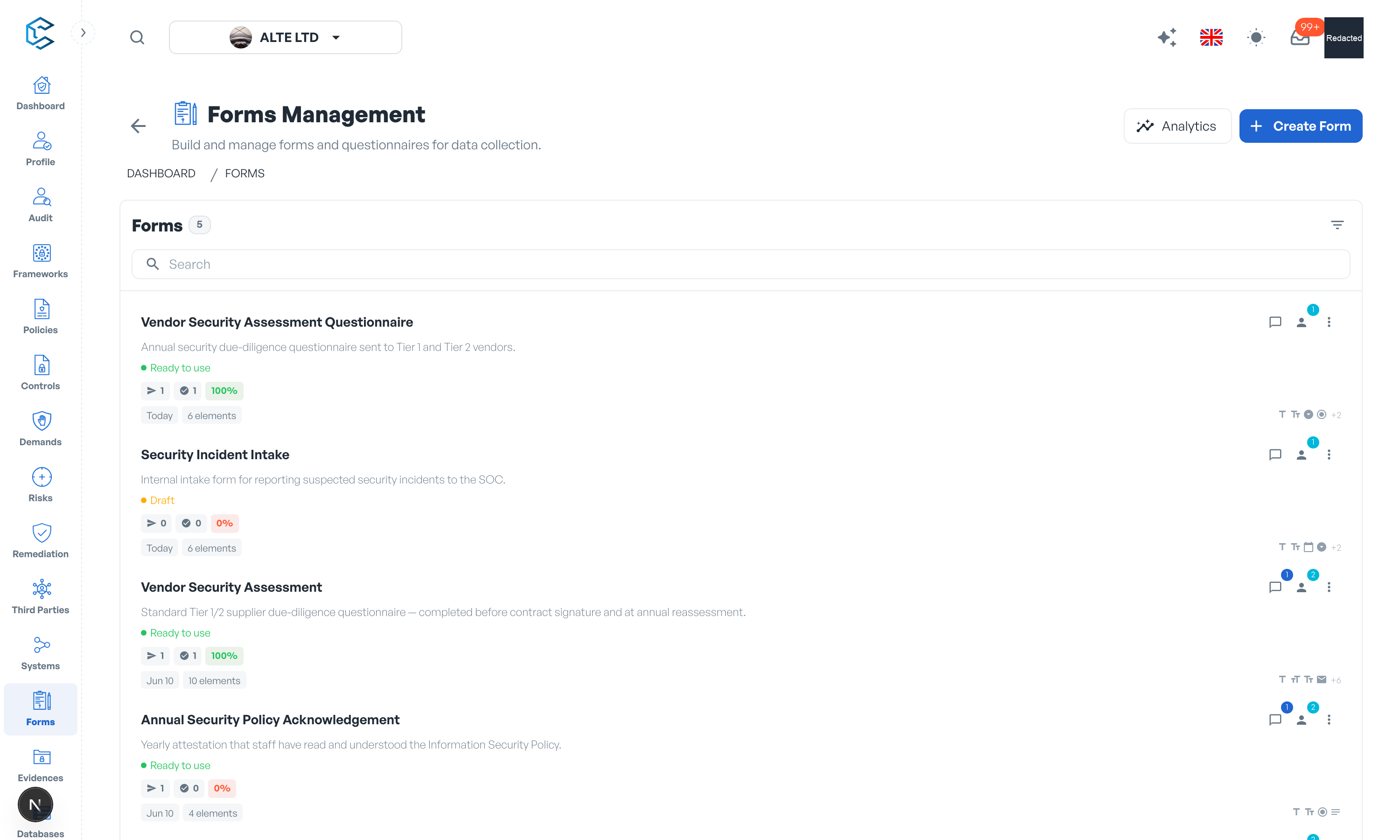
1. What forms are for
Forms close the gap between your compliance team and the people who hold the information: due-diligence questionnaires for third-party contacts, self-assessments for system owners, information requests on risk demands. The Forms page has two views, switched from the header: the Builder, where you design and manage your form templates, and Analytics, where you track everything that has been sent and answered.
2. Building a form
Click Create Form and give the form a name and a description. Add Element then opens the element gallery, split into layout elements (Title, Subtitle, Divider) that structure the form into readable sections, and input elements, the fields respondents answer:
| Input element | What it collects |
|---|---|
| Text Input | A single line of text |
| Text Area | Longer, formatted responses (rich text) |
| Number Input | A number, with optional minimum and maximum |
| Email Input | An email address, with validation |
| Date Picker | A date |
| Checkbox | A yes/no confirmation |
| Radio Group | One choice among several options |
| Select Dropdown | A dropdown choice, single or multiple selection |
| File Upload | Documents from the respondent (up to 20 files, up to 50 MB each, optionally restricted to images, PDFs, documents or spreadsheets) |
Each element takes a label, optional placeholder text and a "Make this field required" switch; choice elements take one option per line. Drag elements to reorder them, and open Form Preview at any time to see the form exactly as a respondent will. Colour-coded categories (Manage Categories) keep a growing form library searchable, and forms carry owners and comments like other CSFaaS items.
3. Completing and locking a form
A new form is In progress: editable, but not yet sendable. When the structure is ready, use Mark as Completed; CSFaaS validates it first (no input elements, required fields without labels). A completed form becomes read-only, shows as "Ready to use", and can be sent. It can be reverted to In Progress for further edits as long as it has never been sent; once sent to at least one recipient it is permanently locked, so use Duplicate Form to create an editable copy instead.
4. Sending a form
Forms are sent from the record they concern, not from the Forms page. On a third party, a system or a risk demand, open the Share form drawer, then:
- Choose a form: pick one of your completed forms.
- Recipient: enter the recipient's email address, with an optional message.
- Send form: the recipient receives an email containing a personal secure link. You can also use Copy link to share it through another channel.
The drawer lists every submission for the record with its status (Pending, Completed or Cancelled) and lets you Resend the email, cancel a pending submission or open a completed response. For security, a maximum of 5 forms can be sent per record. From the builder side, Where this form was sent shows every recipient of a form across your third parties, systems and risk demands.
5. The respondent experience
The link opens the form on a standalone page: no CSFaaS account and no sign-in required. Answers are saved automatically as the respondent types, so a long questionnaire can be completed over several sittings from the same link. File Upload questions accept the file types and sizes you configured, and Text Area questions offer rich-text formatting. When finished, the respondent submits the form and the submission is marked Completed on your side.
6. Responses and analytics
Open a completed response, including any uploaded files, from the record's Share form drawer (View response). Form activity also lands in your Inbox: the notification deep-links straight to the record with the response already open.
The Analytics view gives you the workspace-wide picture:
- KPIs: Forms sent, Answered, Not answered, Completion rate and average time to answer, over the last 30 days, the last 90 days or all time.
- Charts: sent vs. completed volume over time, the answering pattern (one sitting vs. several) and submissions per form.
- Responses table: every form sent, with its source object, recipient, status, key dates and a direct View answers action.
Privacy note. Personal details in this revision have been removed, masked or replaced for privacy. The original is retained privately.