

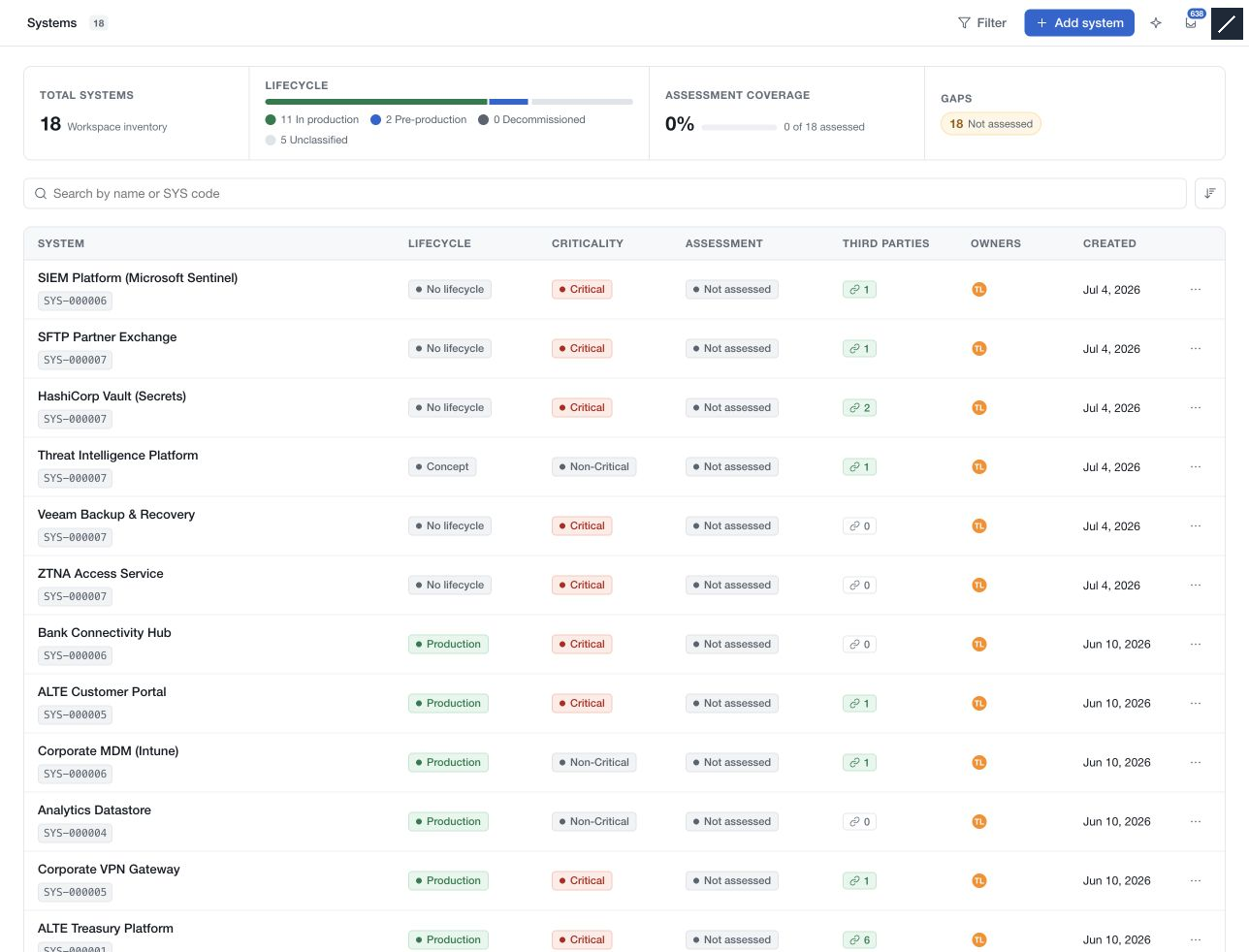
Open Systems from the main navigation. The initial view is a register with overview figures, search, sorting, filters and a table of the systems available to you.
Read the overview and table
The overview separates lifecycle distribution from assessment coverage. Unclassified lifecycle information and Not assessed records are gaps to investigate, not low-risk results. Assessment coverage reflects the module's assessment-status calculation rather than the completeness of every record field.
The table shows system identity, lifecycle, criticality, assessment status, third-party relationships, owners and creation date where those values are available. Search and filters narrow the list; pagination controls how many matching rows are visible at once.
Open a record
Select a system row. The register becomes a compact list alongside the record. The header identifies the selected SYS code, and previous/next controls move through the available record sequence.
Use Hide list to give the record more room, and the corresponding control to restore it. The header also controls the record-activity panel. These layout controls do not change the system's content.
Read and edit sections
The record uses sections rather than the old tabbed detail editor. Depending on framing, it presents Context, Architecture, Data held, Recovery, Contacts and Complementary information, followed by relationships and assessment information.
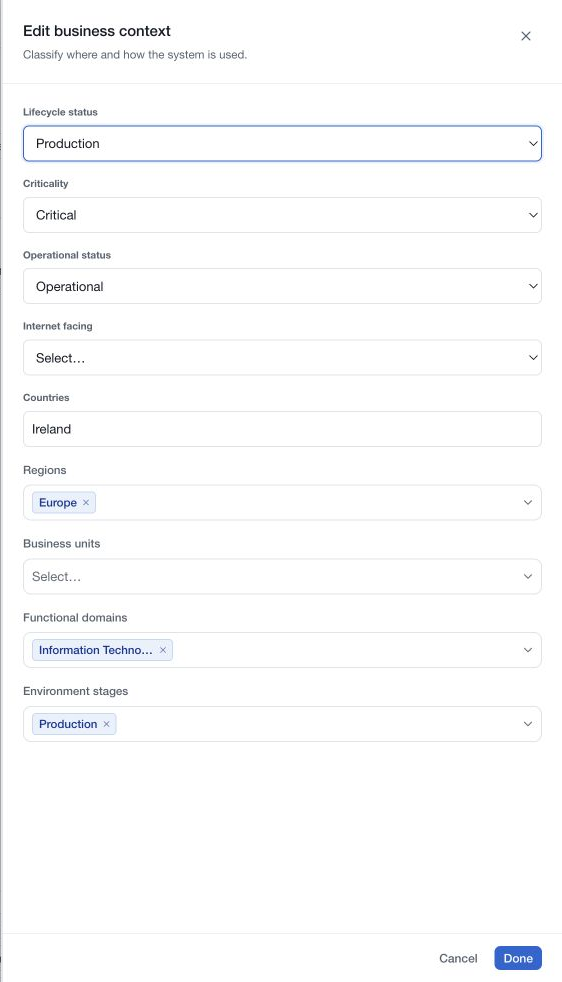
Choose Edit for the section you need. Done keeps its changes in the pending page draft; the save bar writes those edits. Cancel, Escape or closing the section editor restores the values from when that editor opened.
The side panel provides supported Activity, Comments, Evidence and Reviews tabs. Their actions, as well as owners, stakeholder invitations and assessment links, have their own controls and save behaviour.
Understand read-only states
Module permissions, own-record scope and accepted stakeholder access determine what you can read and change. Decommissioned records are frozen for classification editing until an authorised return-to-service action is completed.
A colleague's visible cursor or presence indicator is not a grant of access or an exclusive editing lock. Follow the current editor and save feedback when collaborating.