

Use the register controls to find systems by identity and classification. They work within the records available to your current workspace access.
Search and sort
Search systems matches a system name or SYS code. Use Sort to choose Most recent, Name A–Z, Name Z–A, SYS code ascending or SYS code descending.
Search and sorting remain separate from the filter-option search inside the Filter panel. Searching for a filter label helps you find a criterion; it does not replace the system-name search.
Apply live filters
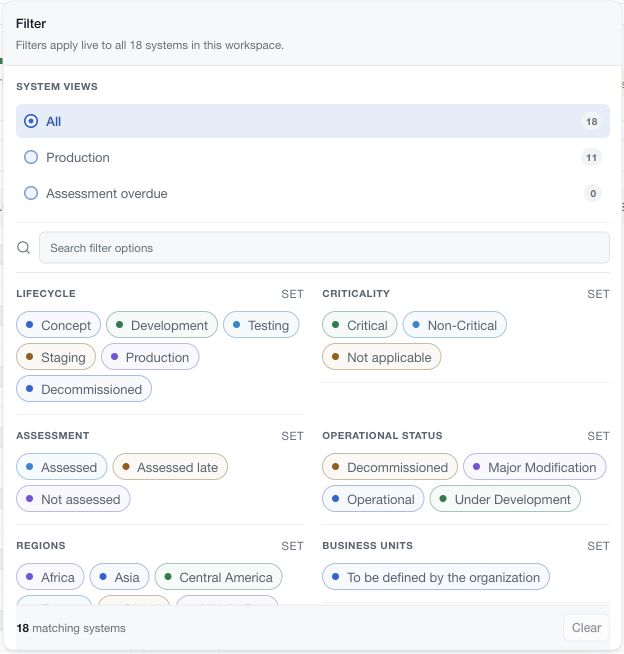
Choose Filter in the header. The panel offers system views such as All, Production and Assessment overdue, followed by the supported classification groups.
The current groups include Lifecycle, Criticality, Assessment, Operational status, Regions, Business units, Functional domains, System types, Hosting, Recovery time objective and Recovery point objective. Availability depends on framing and catalogue information.
Select the values you need. Filter changes apply live and update the matching count; there is no separate Apply filters step in the current panel. Use the option search when the panel contains many choices.
Clear a narrowed view
Use Clear to reset the active filter groups and return the system view to All. Clear Search systems separately if you also want to remove the name or code query. Close the panel to continue working with the resulting list.
The filter button indicates active filtering, and pagination shows the current matching page. A zero-match result does not prove the workspace has no systems. Review the current view, search and filter selections before drawing that conclusion.
An unavailable classification source can affect the options or relationship information displayed. Resolve the source error instead of treating an unknown value as a valid “none” classification.