

The Systems module is the inventory of every component that supports your organisation in reaching its business goals: applications, platforms, infrastructure, data, facilities and more. To open it, select Systems in the left menu.
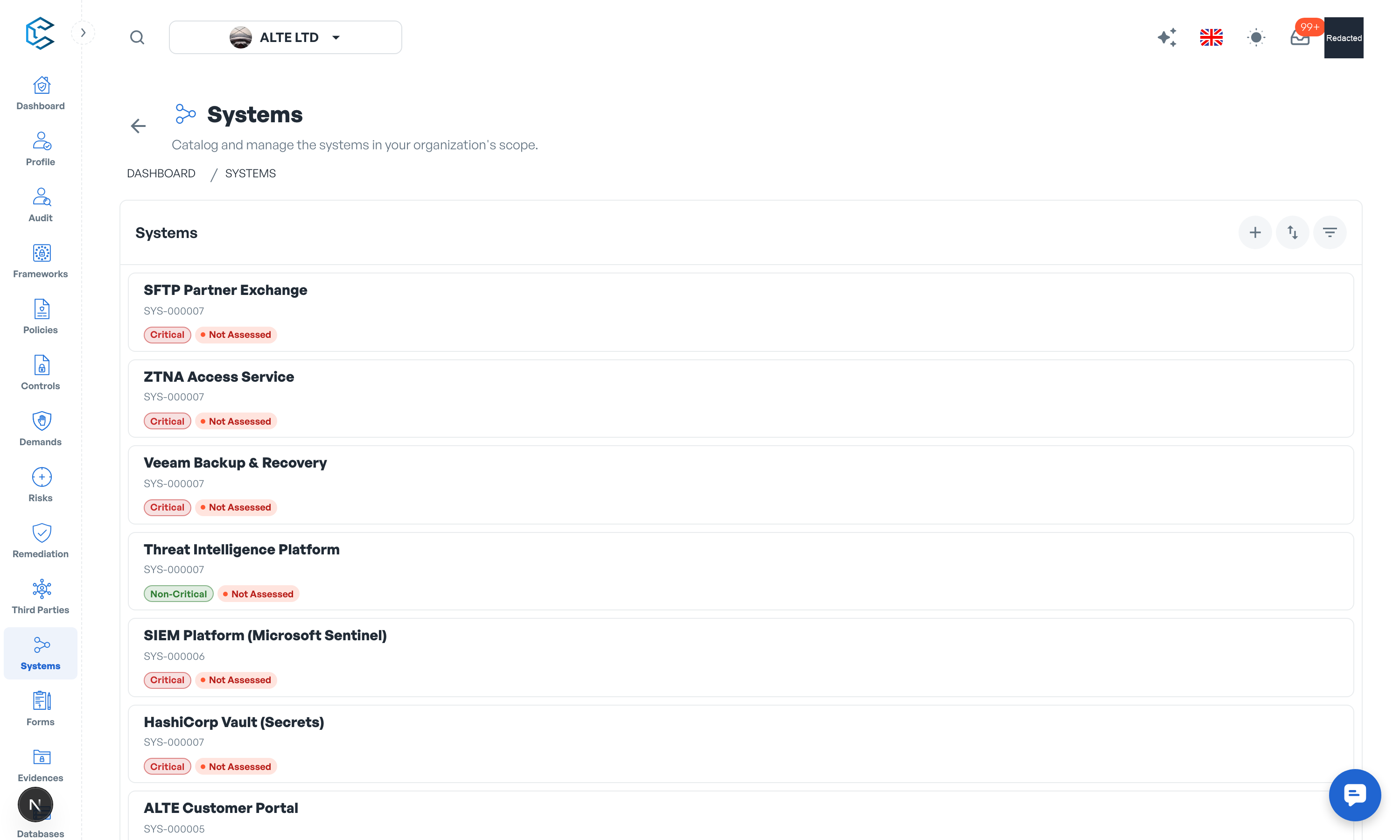
1. A Two-Panel Layout
The page is split into two panels:
- Systems list (left): every system you are allowed to see, with search, sort, filters and pagination.
- Details panel (right): the full record of the selected system, organised in tabs.
Select a system in the list to open it on the right. Each panel can be collapsed to give the other one the full width. There is no separate edit screen: if you have write access, you edit the fields directly in the details panel.
2. The Systems List
Each entry shows the key information at a glance:
- System Name and the unique reference CSFaaS assigned to it (for example SYS-000001).
- System Status: the lifecycle status (Concept, Development, Testing, Staging, Production or Decommissioned).
- Criticality: Critical, Non-Critical or NA.
- Risk assessment status: Assessed, Late or Not Assessed.
The list header holds the Add System button, a Sort control and the Filter Systems button (a badge shows how many filters are active). Long lists are paginated at the bottom of the panel.
3. The Details Panel
The header of the details panel shows the system name and reference, a clickable risk assessment badge (opens the risk assessments drawer) and the System Status chip (opens the status drawer). Next to them sits a row of quick actions:
- Activity and notifications: the activity feed of this system, with a follow toggle.
- Periodicity Review: schedule recurring reviews of the record.
- Comments: discuss the system with your team.
- Owners & Contacts: assign the people accountable for the system.
- Evidence: attach supporting files or links.
- Share Forms: send a form about this system and track responses.
- Stakeholders: share this single system with a workspace member (see below).
- More actions: delete the system.
Below the header, the record is organised in tabs:
| Tab | What it holds |
|---|---|
| Context | Name, description, location and business context |
| Architecture | Technical attributes: type, accessibility, hosting, cloud details |
| Data Information | CIA levels of processed data, data classification, PII and PHI |
| Recovery | Recovery Time Objective and Recovery Point Objective |
| Complementary Information | Free text for boundaries and anything else worth recording |
Tabs and fields follow your workspace framing settings, so sections your organisation has switched off do not appear.
4. Editing and Saving
Edits made in the tabs are collected by the floating save bar at the bottom of the page: click Save to commit everything at once, or Discard to drop the changes. The bar warns you before you navigate away or select another system while changes are pending. Quick actions such as the status drawer apply immediately and say so in their tooltip.
Only one person edits a system page at a time: if a colleague is already editing, a floating pill shows who has the hand, and you can request control with Take hand.
5. Who Can See and Edit Systems
Access is governed by the System Management permission of your workspace role: View gives read-only access and Edit allows changes. A role can also be limited to the Own scope, in which case its members only see and edit the systems they created themselves.
On top of role permissions, the Stakeholders action lets an editor share one specific system with any active workspace member, with Read or Write access. The invitee receives an in-app invitation to accept or decline, and access can be revoked at any time. This is the way to involve someone in a single system without opening the whole module to them.
Privacy note. Personal details in this revision have been removed, masked or replaced for privacy. The original is retained privately.