

The Third Parties module is the inventory of your suppliers, partners and other external relationships. Every third-party relationship introduces potential exposure, so keeping this inventory accurate is the first step of supply chain security. To open it, select Third Parties in the left menu.
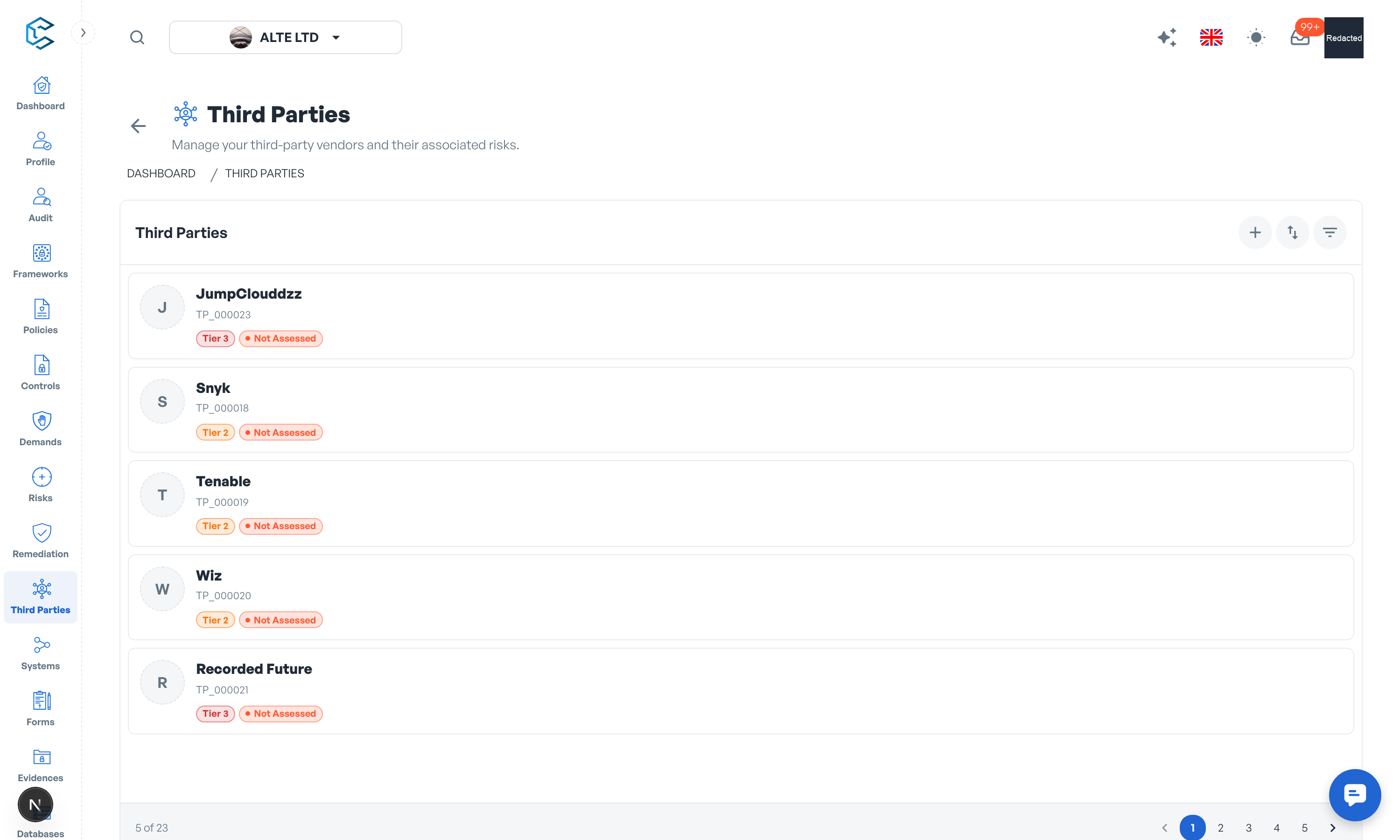
1. A Two-Panel Layout
The page is split into two panels:
- Third parties list (left): every third party you are allowed to see, with search, sort, filters and pagination.
- Details panel (right): the full record of the selected third party, organised in tabs.
Select a third party in the list to open it on the right. Each panel can be collapsed, and there is no separate edit screen: with write access, you edit the fields directly in the details panel.
2. The Third Parties List
Each entry shows the essentials at a glance:
- Third Party Name and the unique reference CSFaaS assigned to it (for example TP_000001).
- Tier level: the criticality ranking of the relationship (for example Tier 1 to Tier 4).
- Risk assessment status: Assessed, Overdue or Not Assessed.
The list header holds the Add Third Party button, a Sort control and the Filter Third Parties button (a badge shows how many filters are active). Long lists are paginated.
3. The Details Panel
The header of the details panel shows the third party's logo (click it to upload or change the image), its name and reference, the Tier Level badge and a clickable risk assessment badge that opens the risk assessments drawer. Next to them sits a row of quick actions:
- Activity and notifications: the activity feed of this third party, with a follow toggle.
- Periodicity Review: schedule recurring reviews of the record.
- Comments: discuss the third party with your team.
- Owners & Contacts: assign the internal people accountable for the relationship.
- Evidence: attach supporting files or links.
- Share Forms: send a form (for example a security questionnaire) and track responses.
- Stakeholders: share this single third party with a workspace member (see below).
- More actions: delete the third party.
Below the header, the record is organised in tabs: Information, Data Classification, Related Systems and Complementary Information. Tabs and fields follow your workspace framing settings.
4. Editing, Saving and Access
Edits made in the tabs are collected by the floating save bar at the bottom of the page: Save commits everything at once, Discard drops it, and the bar warns you before navigating away or switching to another third party with changes pending. Only one person edits a third party page at a time: a floating pill shows who has the hand, with a Take hand request.
Access is governed by the Third Party Management permission of your workspace role, which can be limited to the Own scope (members then only see and edit the third parties they created). The Stakeholders action additionally lets an editor share one specific third party with any active workspace member, with Read or Write access, through an in-app invitation that can be revoked at any time.
Privacy note. Personal details in this revision have been removed, masked or replaced for privacy. The original is retained privately.