

Use search and filters to find a relationship or prepare a focused review queue. The register retains your active view while you inspect individual records.
Search and sort
Enter a third-party name or TP code in Search third parties. Use the sort control to choose most recent, name A–Z, name Z–A, or ascending or descending code order.
For example, search a supplier name to find its record, or start from Assessment overdue to investigate assessments that need renewal. The overview and result count help you understand the selected population.
Use the filter panel
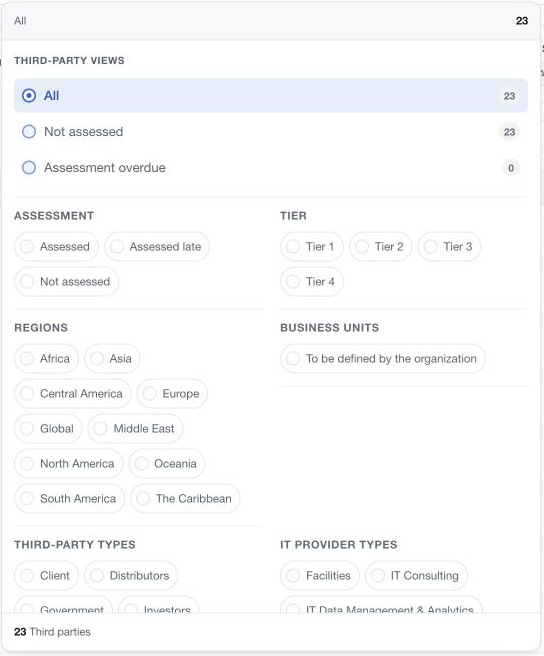
Open Filter and choose an available view: All, Not assessed or Assessment overdue. You can also select assessment state, tier, regions, business units, third-party types, IT provider types, data classification, personal data (PII) and health data (PHI).
Selections apply as you make them and reset pagination to the first page. There is no separate Apply Filters step. Review the active selections and the result count before drawing conclusions from the list.
Use Clear to remove the panel's filters and return to the All view. Clear the main search field separately if you also want to remove its search text.
Interpret an empty result
No matching rows means that the current search, view, filters and access scope produced no visible matches. Broaden the criteria and check your workspace before concluding that a third party has not been registered.
Classification filters depend on maintained catalogue values and record data. An unclassified record may be absent from a filtered set even when the relationship exists.