

Framework links show which requirements a policy control supports. A control can support several requirements, and a requirement can be supported by several controls.
Add a relationship
Open the control and choose Link to framework elements. If the framework-links resource drawer opens first, choose Link to framework elements inside that drawer to open the selector. Browse or search the framework tree, inspect the proposed requirement and select the intended elements. Review the selection before choosing Link elements.
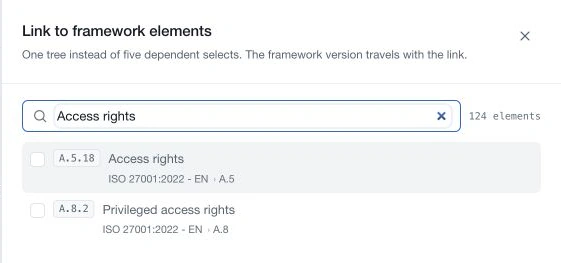
The relationship includes version context. Check the framework and requirement rather than selecting by a short display code alone. Existing relationships are distinguished from available choices.
Review coverage
Read linked elements from the control's framework-links section, and use Open in Frameworks to inspect a requirement in context. Covered and Partial express the declared relationship state shown by the app; the presence of a link alone does not establish compliance.
Use Controls → By framework to review the controls associated with a particular framework version. Check control completion, maturity and supporting evidence alongside the mapping.
Remove an obsolete link
Use the remove action on the specific relationship and read its confirmation. Relationship removal can affect its links across framework versions, so review the stated scope before confirming. Removing a mapping does not substitute for reviewing the underlying control or requirement.
Keep mappings current when policy versions or framework content change. The Framework updates review flow supports deliberate incorporation of reference changes into policy work.