

Linking a control to a framework category or subcategory connects what you implement to what the framework requires. Control links are the ones that count: they drive the framework's Control Progression and Controls Completion, giving you clear visibility of your adherence to each framework.
1. Links Created Automatically
When you implement framework elements into your policies through Framework Updates, the framework link is created for you as part of the implementation. Manual linking is mainly for controls you created yourself or imported from the catalogue.
2. Link a Control Manually
- Navigate to the control and expand it to open its details.
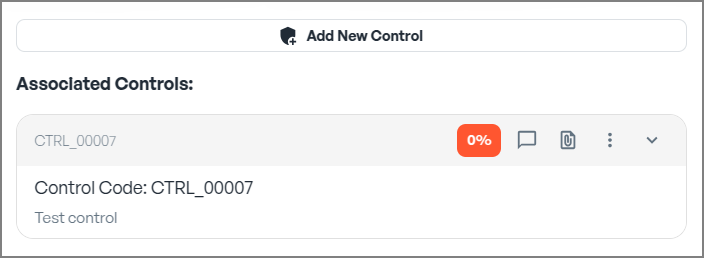
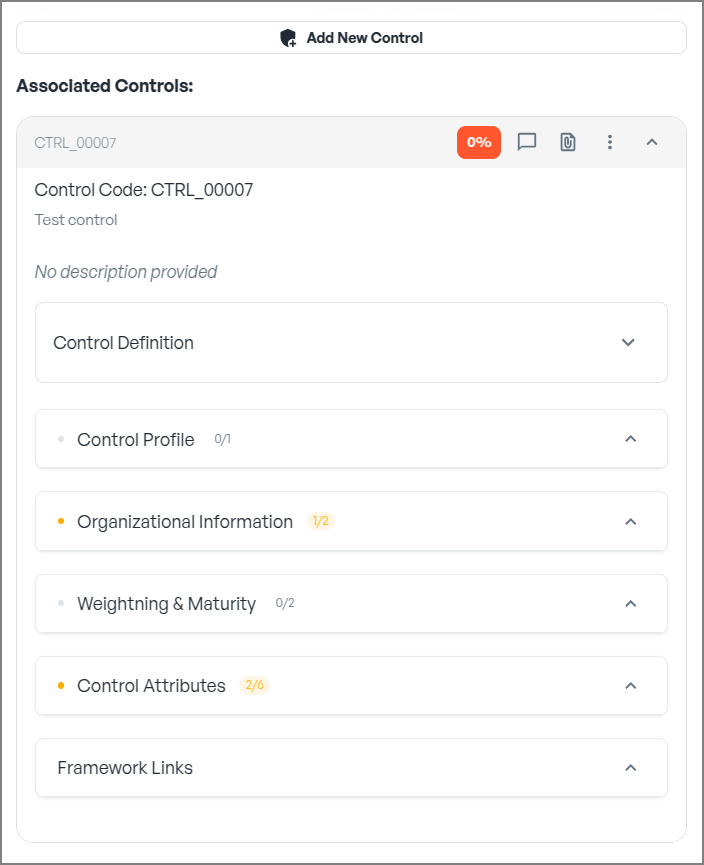
- Open the control's Framework Links action and click Add New Framework Link.
- Select Framework: only frameworks switched "In policies" appear; make sure yours is enabled on its framework card.
- Select Version: links are added on in-progress policy versions only.
- Select Domain, then the appropriate Category and optionally Subcategory.
- Click Create Link. Repeat the process to link the control to additional frameworks.
3. Monitoring and Alignment
Once linked, the control appears on the framework side: the linked element's Control Progression shows the control and its completion, and the framework card's Controls Completion reflects the coverage. Use Open in framework from the links drawer to jump to the linked element, and Remove this link from all versions if a mapping is no longer right.