

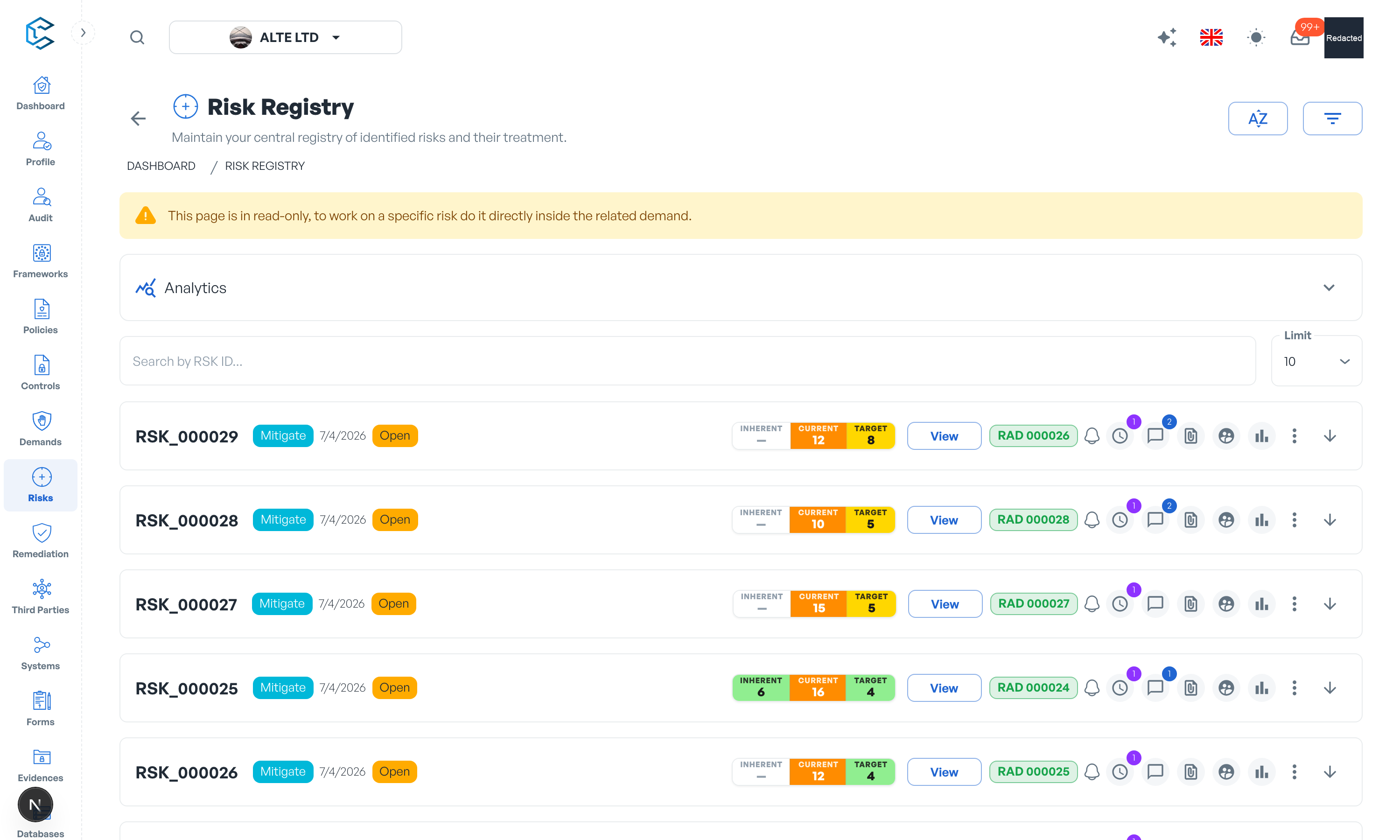
The Risk Registry module, accessible from the main menu, is the central record of every identified risk in the workspace. It gives you transparency, accountability and a single place to track each risk's level, response, owner and status through its lifecycle.
1. Overview
Every risk created during a risk assessment demand is automatically registered here. Within the module you can:
- Monitor and review risks: each card shows the risk's inherent, current and target levels, its response and its status.
- Manage the risk's status: mark risks as closed, confirm their closure, or reopen them.
- Assign owners: designate responsibility for each risk.
- Collaborate: comments, evidences and, where enabled, periodic review scheduling are available on each card.
- Delete a risk: remove risks that are no longer relevant (a confirmation is requested).
Note: Risk content in the registry is view-only. To modify a risk's assessment, work inside its related demand; the card links you straight to it.
2. Closing a risk
After the risk response and remediation information are set, each risk should eventually be marked Closed. Since a demand may contain multiple risks, each is closed individually:
- Locate the risk and open the three vertical dots menu on its card.
- Click Mark as Closed.
If any of the risk's remediation plans has no responsible assigned, you are warned and asked to confirm before closing.
What happens next depends on your workflow settings:
- Assurance review enforced: closing an open risk (allowed for the Risk Analyst or the Risk Owner) sets it to Pending Validation; an Assurance member then finalises it with Confirm Completion, moving it to Closed.
- Analyst review only: the Risk Analyst or the Risk Owner closes the risk directly.
- No enforcement: the risk closes directly.
3. Reopening a risk
In principle, a closed risk should remain closed: each demand represents a completed evaluation cycle, and new concerns deserve a new demand rather than edits to past records. Reopening is justified for administrative updates, such as reflecting an ownership change.
- Locate the closed risk, open the three vertical dots menu, and click Reopen RSK.
The risk returns to Open, allowing the necessary updates.
Warning: Avoid reopening risks to modify their assessment or risk response. If the environment or security posture has changed, create a new risk demand instead; this preserves traceability and compliance with risk governance practice.
Privacy note. Personal details in this revision have been removed, masked or replaced for privacy. The original is retained privately.