

Editing a System
To edit a system:
-
Click the blue “Edit” button to access detailed and editable system information.

- From there, you would be able to edit your system
Updating the System Status
To update the system status,
-
Click the three vertical dots

-
A new menu
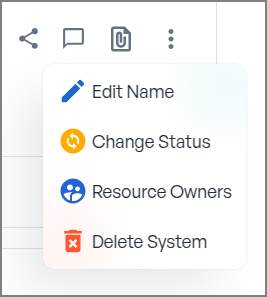
- Select “Change Status”.
-
A new menu will appear offering predefined system statuses based on ISO/IEC 15288:
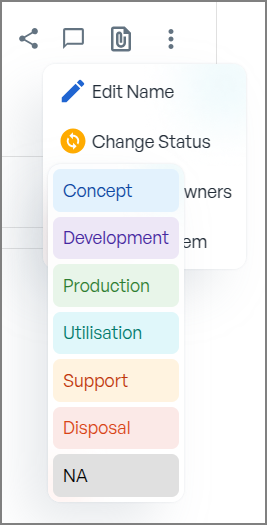
- Concept: Identifying the need and feasibility of the system.
- Development: Designing, building, and testing the system.
- Production: Deploying the system into operational use.
- Utilisation: Fully operational and serving its intended purpose.
- Support: Undergoing maintenance, updates, or monitoring.
- Disposal: Decommissioning and safely retiring the system.
- N/A: For systems that do not fit into the above categories.
Deleting a System
To delete a system:
To remove a system from the registry, follow these steps:
- Access the System Options: Click the three vertical dots (options menu) next to the system you wish to delete.
- Select the Delete Option: From the dropdown menu, select “Delete”.
- Confirm the Deletion: A confirmation prompt will appear. Confirm the action to permanently delete the system.
Once confirmed, the system will be permanently removed from the registry.