

Editing or Deleting a Third Party
To manage an existing third party, you can edit its details or delete it from the registry. Follow the steps below:
-
Access Third Party Details: Click the blue “Edit” button to access detailed and editable third party information.

Edit Third Party Name
To view or select assigned owners for this Third Party catalog entry:
-
Click the three vertical dots on the Third Party Card.

-
Select “Edit TP Name”.
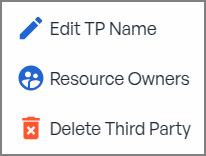
- Update the name as needed and save your changes.
Define or Update Owners
To view or select assigned owners for this Third Party catalog entry:
-
Click the three vertical dots on the Third Party Card.
-
Select “Resource Owners”
- View, assign, or update the owners for the third party catalog entry.
Deleting a Third Party
To permanently remove a third party from the registry:
-
Click the three vertical dots on the Third Party Card.
- Select “Delete Third Party”.
-
Confirm the deletion action to permanently remove the third party from the registry.
- Once confirmed, the third party will be permanently removed from the registry.