

Linking your policy elements to frameworks gives you automatic traceability: you see which policies satisfy which requirements, across one or several frameworks at once, and the frameworks' Controls Completion reflects your real coverage.
1. View Existing Links
- Select the policy element in the tree.
- Click the Framework Links icon in its header; the badge shows the number of links.
- The drawer lists every existing link with its framework and policy version; Open in framework jumps straight to the linked framework element.
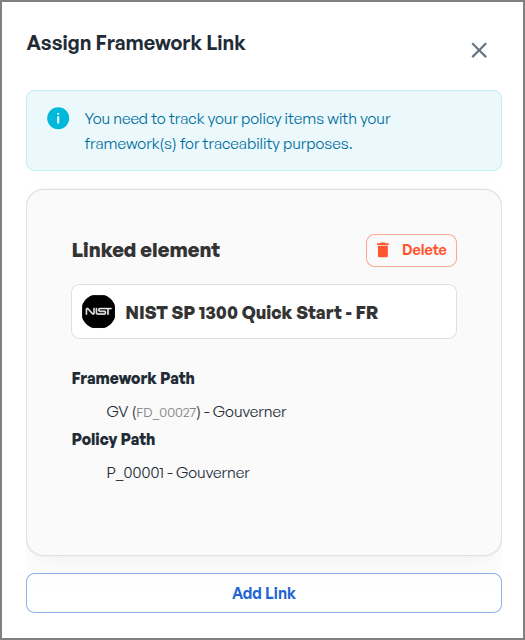
Elements implemented from Framework Updates arrive with their link already in place, so you usually only add links by hand for elements you created yourself.
2. Create a Link
- In the drawer, click Add New Link.
- Select Framework: only frameworks marked "In policies" appear.
- Select Version: links are created on in-progress policy versions only; approved and pending versions are read-only.
- Select Domain, then optionally a Category and a Subcategory; skip the optional steps to link at a higher level.
- Click Create Link. Repeat to map the same element to additional frameworks.
3. Remove a Link
In the drawer, use Remove this link from all versions on the link you want to drop. Because policy metadata is copied onto each new version, removing from all versions keeps the mapping clean; the drawer counts and displays links per version so duplicates never inflate your coverage.
4. What Counts Toward Compliance
Links at the policy, category or subcategory level are for organisational reference. Only control links count as actual compliance mapping: they are what the framework's Control Progression and Controls Completion measure. When a linked framework changes, the Framework Updates drawer notifies you so the mapping never drifts.