

Deleting a framework is as straightforward as adding one, but exercise caution: the action is irreversible. It erases the framework's versions, domains, categories, subcategories and comments, and its links stop appearing in the Policies module. You have two options, depending on whether your workspace enforces a deletion workflow.
1. Delete a Framework Without Approval Workflow
- Navigate to the Frameworks section.
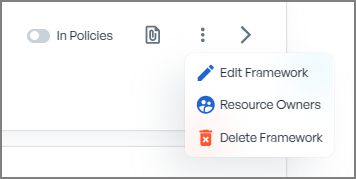
- Click the three vertical dots on the framework card.

- Select Delete Framework.
Warning: the confirmation dialog reminds you that deleting the framework permanently erases all associated data, including versions, categories, subcategories and their comments, and that recovery will be impossible.
- Type the name of the framework to confirm.
- Click Cancel to back out, or Delete to remove the framework permanently.
2. Delete a Framework with Approval Workflow
CSFaaS can require approvals before a framework is deleted, so stakeholders review the request first.
Step 1: Configure the deletion workflow
In Settings, open the Workflows tab and find the framework deletion flow in the Frameworks group. Set it to Enforced, choose Single or Multiple validation, and pick the Approver role.
Tip: if several people must validate deletions, create a dedicated role for them and use Multiple validation.
Step 2: Request the deletion
Delete the framework exactly as above. Instead of disappearing, the card shows that the deletion was requested and is waiting for confirmation by the appropriate handlers.
Step 3: Approval
- Users holding the approver role can approve or reject the deletion from the framework card.
- With Multiple validation, every approver must confirm; each approval is recorded.
- Once fully approved, the framework is deleted automatically and permanently.
Note: if no users are assigned to the approver role, the deletion request cannot proceed; assign users to the role first.