

Use the framework's Statistics view to understand recorded assessment results and its Structure view to inspect the requirements behind them. Confirm the selected version before interpreting either view.
Read statistics
Choose Maturity or Applicability, then Radar, Sankey or Heatmap. Available panels show overall maturity, documentation and implementation where enabled, assessment coverage, applicability distribution and results by hierarchy group.
Use group and coverage controls to inspect the corresponding structure. Compare the current and target values together with the number of requirements assessed.
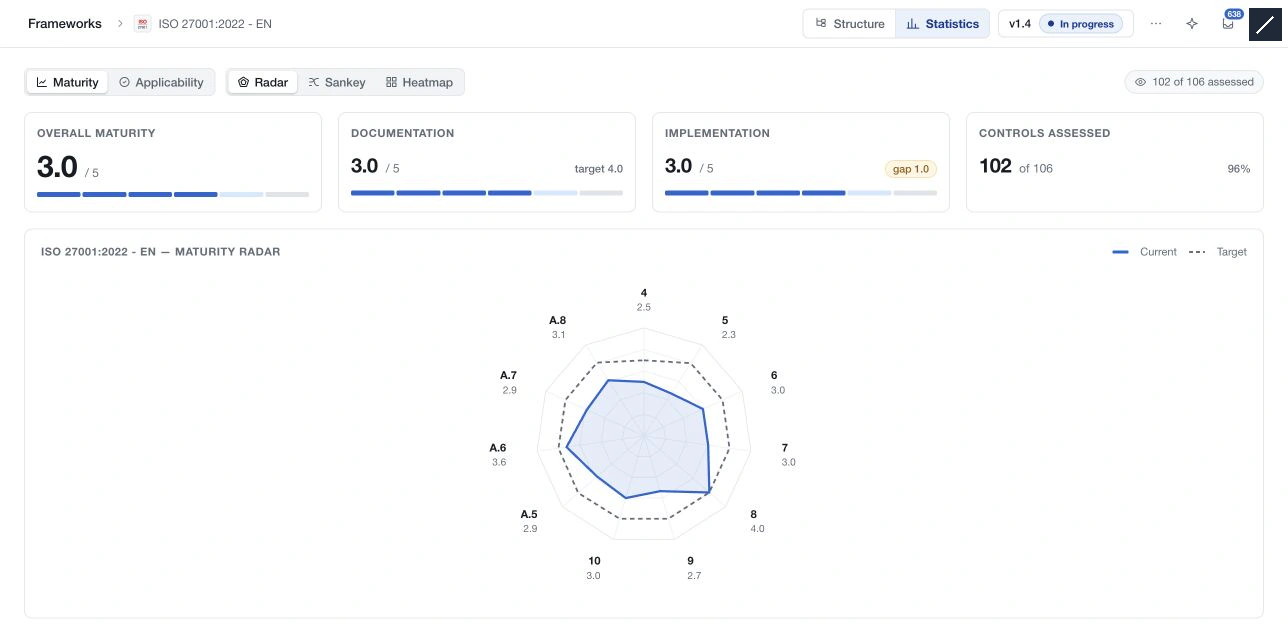
Maturity calculations use their eligible assessment population. An unset value is not automatically a measured zero, and Not applicable items affect the scope differently from unassessed items. A chart can omit unassessed axes instead of placing them at zero. Read coverage and exclusions alongside the average.
An empty-data notice means there is no suitable recorded data for that view. It is not an assessment result. CyFun conformity uses the separate CyFun actions → Summary view and its stated checks.
Filter the structure
Search requirements by code or name in the structure panel. Open Filter to select applicability states or policy-control link states. Current applicability includes Partially implemented and Not assessed; link states include Fully linked, Partially linked, Not linked and Link not required.
Filters apply as selected. Use the All option in a group to clear that group and clear the search field separately. Expand or collapse the tree to adjust the level of detail.
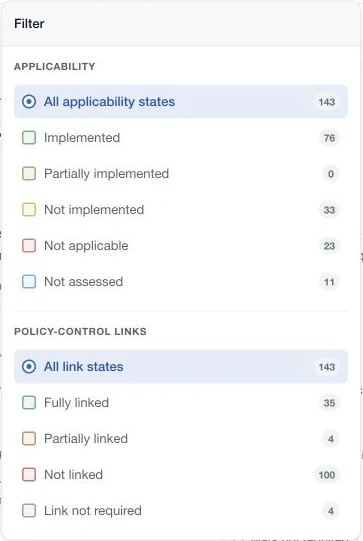
Check active filters when a requirement seems absent. Filtering changes the displayed population; it does not change the assessment or delete requirements.