

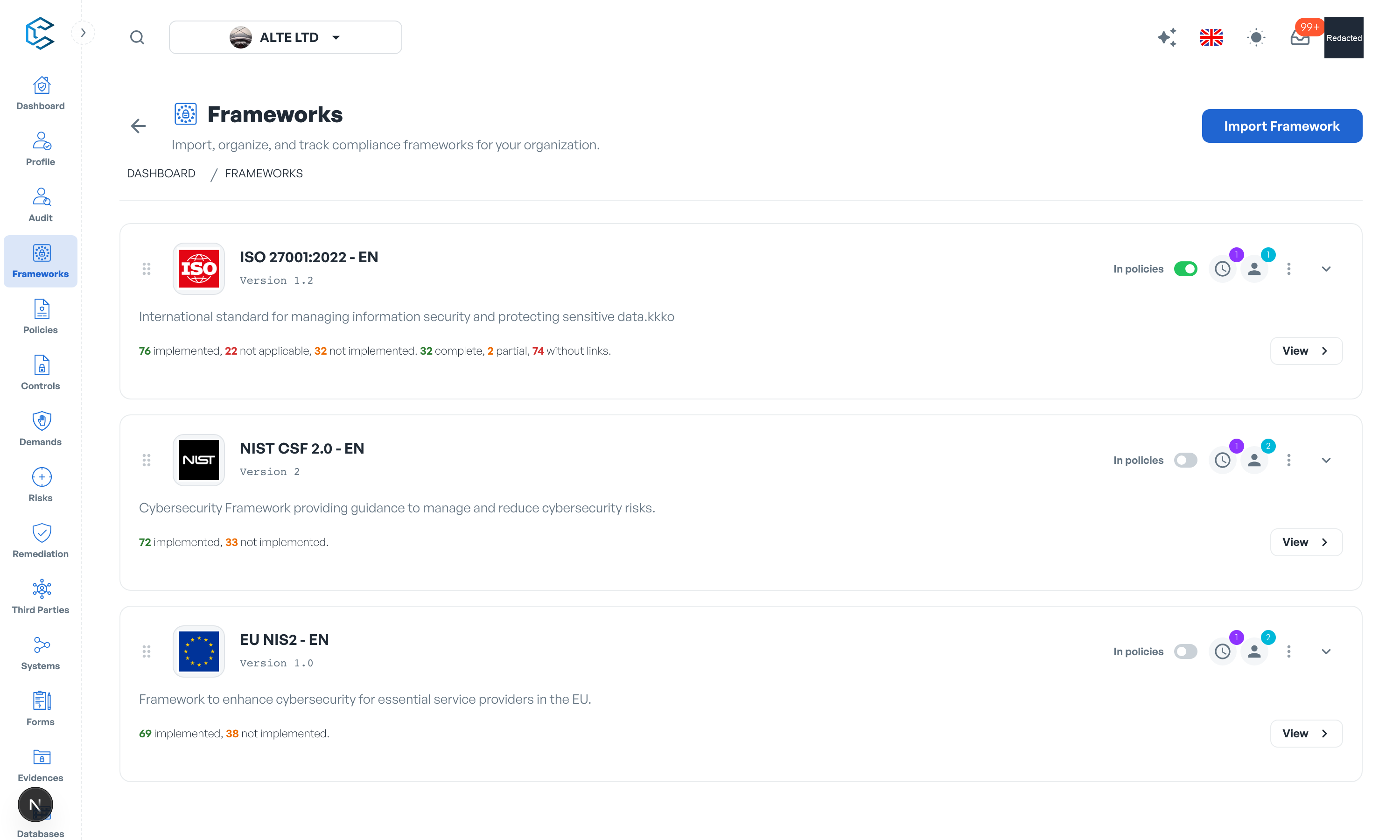
The Workspace Frameworks page lists every framework you have imported or created. It is the entry point for managing each framework and for deciding which ones feed your policies.
1. The Frameworks List
- Frameworks are presented as individual cards, in List View or Grid View.
- Cards can be dragged and dropped to reorder them to your preference.
- The list updates in real time: frameworks added or edited by colleagues appear without refreshing.
2. Anatomy of a Framework Card
- Name and icon: editable at any time; frameworks imported from the library also show the original name they are based on.
- Added on: the date the framework entered your workspace (not editable).
- Description: expand the card to read it in full.
- Applicability bar: how many elements are implemented, not implemented, not applicable or unknown.
- Owners and Periodicity Review: assign owners to the framework and schedule its recurring review directly from the card icons.
3. In Policies and Controls Completion
The In policies switch makes a framework available to the Policies module. When it is on, the card displays the Controls Completion progress based on linked policy controls:
- Complete Links: elements whose policy control links are finalised.
- Uncomplete Links: elements with links that are not yet complete.
- Missing Links: elements not yet linked to any policy control.

The switch applies immediately. Turning it off while policy links exist opens a confirmation dialog, because the framework's links stop being shown in the Policies module.
4. Edit Framework Characteristics
- Locate the framework card and click the three vertical dots.

- Select Edit Framework.
- Update the Framework Name, the Framework Description and, optionally, the icon.
- Click Save.
5. Tracking Policy Coverage per Element
Inside the framework, every category and subcategory carries a link status that feeds the card's Controls Completion:
- Missing: not linked to any policy control yet.
- Partial: linked, but not yet confirmed as complete.
- Complete: you confirmed that all required policy controls are linked (use Mark as Complete in the element's Control Progression section).
- Not Required: the element does not require policy links (use Mark as Not Required).
Privacy note. Personal details in this revision have been removed, masked or replaced for privacy. The original is retained privately.