

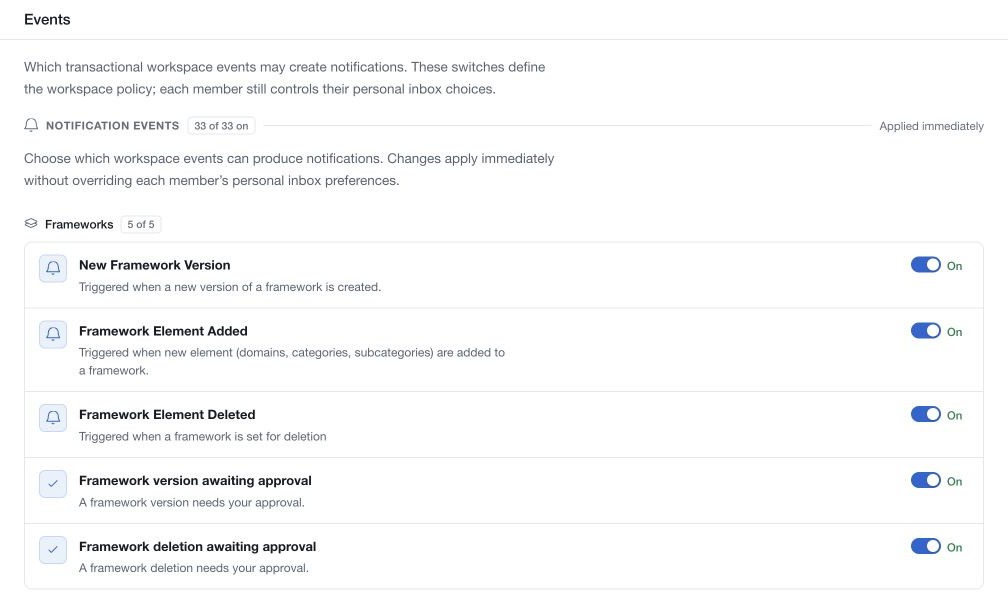
Open Settings → Events to choose which transactional workspace events may produce notifications. The event catalogue is grouped by area, such as frameworks, policies, demands, forms, workspace membership and comments.
Change an event policy
- Find the relevant area and read the event's name and description.
- Set its switch to the intended state.
- Wait for the result and confirm the saved state.
These switches apply immediately and affect workspace notification policy. They do not approve a workflow, complete a business task or change a member's personal Inbox preferences.
Understand the other controls
Members manage followed items, followed sections and read state in their own Inbox. Demand review roles and extra demand recipients are configured in Settings → Risk demands. Live collaboration indicators are configured in Settings → Presence.
When investigating a missing notification, check the relevant event policy, the recipient's current workspace membership and role, and their involvement or follow subscription. Also check the current state of the related workflow. An enabled event switch alone does not mean that every member will receive every event.
Use Activity logs to inspect the events available to your role and history entitlement. Inbox policy and personal read state are separate from that record of activity.