

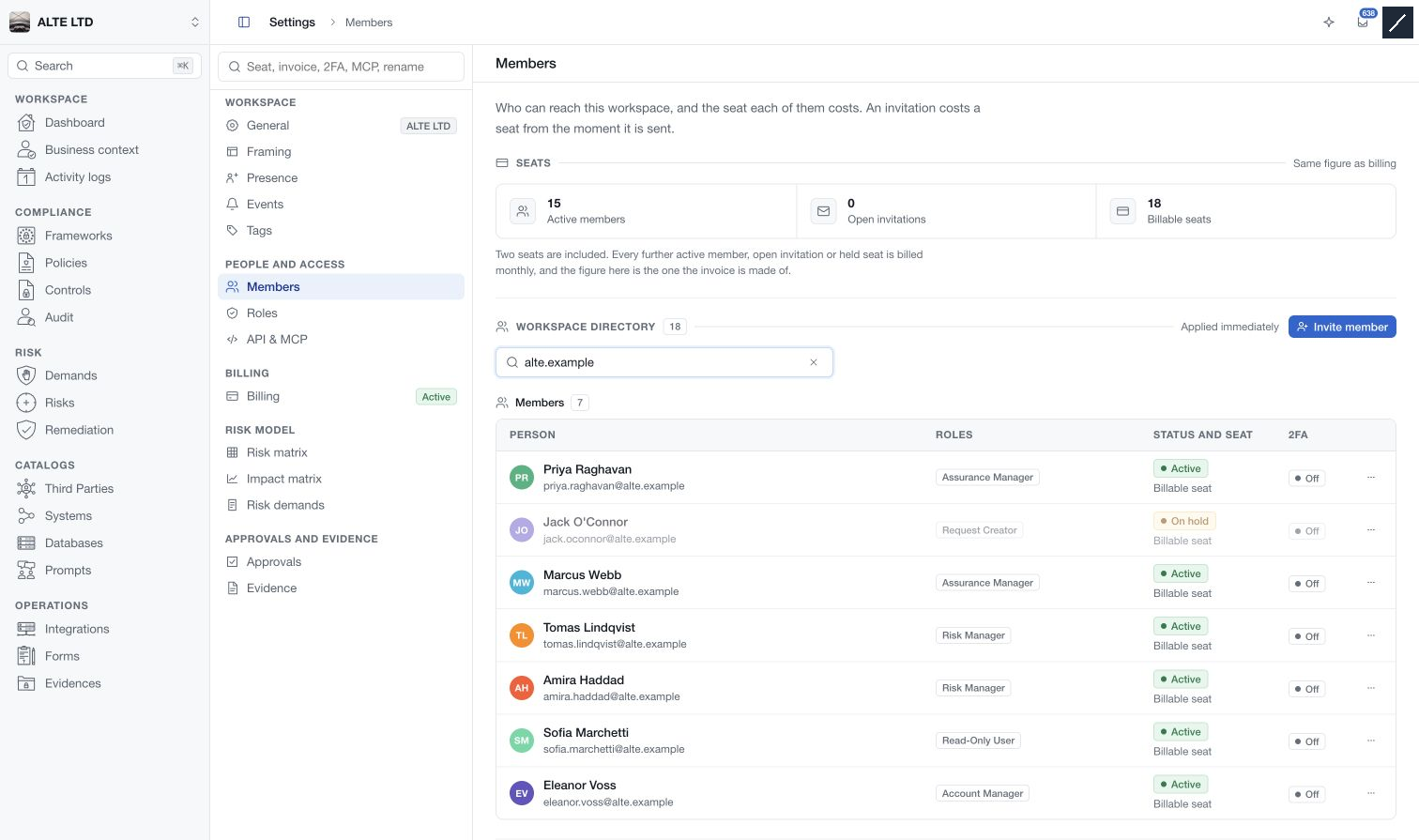
Open Settings → Members to review who belongs to the selected workspace, assign roles and manage invitations. The directory shows each person's roles, membership status, seat status and reported two-factor authentication state.
Read status and seat information together
| Status | Meaning |
|---|---|
| Active | The member can access this workspace, subject to their permissions. |
| Pending invitation | The recipient has not accepted. An open invitation reserves a seat. |
| Expired invitation | The invitation has reached its expiry. Resend or cancel it using its available actions. |
| Declined invitation | The recipient declined. You can clear the invitation from the list. |
| On hold | Workspace access is blocked. The membership and history are retained, and an otherwise billable seat remains billed. |
| Suspended | Access is blocked for billing. Resolve the billing condition before expecting access to return. |
A hold and a billing suspension can coexist. Removing one condition does not necessarily remove the other. Use the displayed seat status and Billing information when checking the financial effect.
Invite people
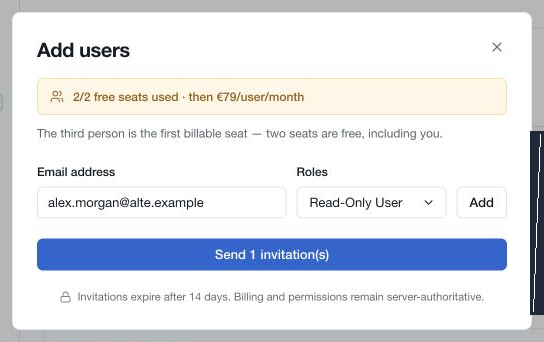
- Choose Invite member to open Add users.
- Enter the recipient's email address and choose the roles they need.
- Use Add if you need another recipient, then review each row.
- Check the seat and payment information before selecting Send invitations.
- Review the result and the Invitations section. If a batch is only partly successful, resolve the failed rows instead of sending the entire list again.
Invitations expire after 14 days. The recipient follows the invitation to sign in or create an account and accept workspace membership. An invitation is not an active session, and a pending invitation does not prove that the recipient has read the email.
If billing or seat eligibility blocks an invitation, follow the explanation in the dialog. Use the current checkout or plan information for prices and payment requirements.
Change roles
Use the role action beside a member or choose Change roles from their actions. Tick the intended roles, review the complete selection, then choose Save changes. Cancel closes an unsaved selection.
Roles combine their grants. Removing one role may leave access available through another. Review the person's remaining roles and any record-specific collaboration access when narrowing permissions. Create or inspect role definitions in Settings → Roles.
Hold, restore or remove a membership
The actions depend on the row's current state. An active member can be put on hold; a held member can be restored or permanently removed from the workspace. Read the confirmation before applying either action. A hold is not a way to release an otherwise billable seat.
Restoration can be refused while billing remains unresolved. The member needs all applicable access conditions restored before returning. Removing a workspace membership does not mean deleting the person's account in every workspace.
You cannot hold or delete yourself through this directory. Use Settings → General → Leave workspace for your own departure, and handle workspace ownership first when required.
Member and invitation actions apply individually. Presence controls are in Settings → Presence. The account security controls at the bottom of Members apply to your own account; they do not let you enrol authenticators for someone else.