

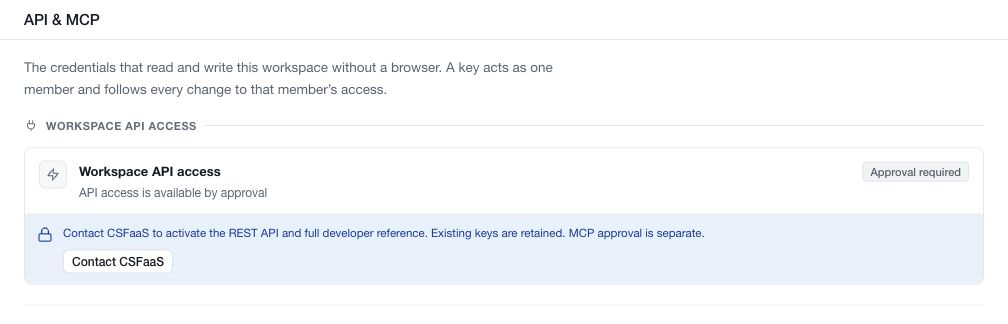
Open Settings → API & MCP to manage access from scripts and connected AI clients. Credentials act on behalf of a member and remain subject to the relevant workspace and record permissions.
Check REST and MCP separately
REST API access and MCP access have independent approval, workspace, member and write controls. An enabled REST API does not establish MCP access, and switching one surface off does not itself revoke the other surface's approval.
If an area shows Approval required, use the displayed contact action to request activation. Existing credential records may remain visible while access is off. Their presence does not mean that requests can authenticate.
If MCP settings cannot be loaded, follow the setup or retry message. An unavailable state is not an approval, a denial, or an empty member list.
Select permitted members
Review each surface's member access list after it becomes available. Owners and protected Account Managers are included by default after approval, while other members require selection. Explicit exclusions take precedence, including an exclusion for an administrator.
Enabling a member for a surface does not expand their underlying record permissions. Check both their role assignments and their access to the requested module.
Manage API keys
An API key acts as its bound member and follows changes to that member's access. Use the key-creation controls available to authorised administrators, review the bound member and requested access level, and satisfy any authentication requirement shown by the app.
Copy a newly issued secret when it is revealed and store it in your script's secure configuration. The key list shows identifying information and usage metadata, not a way to recover the secret. If a key must be replaced, create a replacement and revoke the old credential after updating its consumer.
Revoke stops requests using that key. Disabling workspace access instead pauses authentication while retaining the credential records. Review the action's scope before using it.
Connect an AI client with MCP
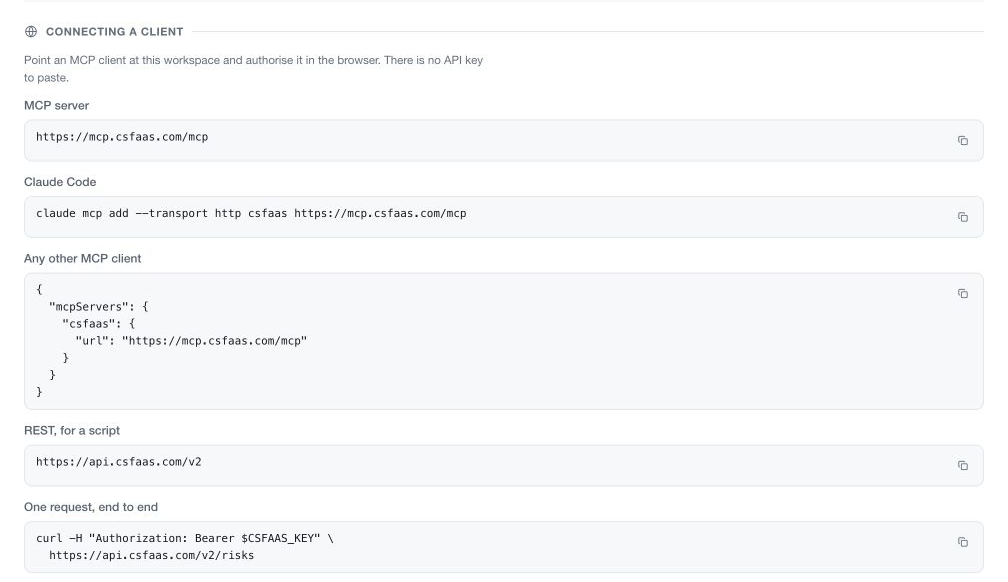
Use Connecting a client to copy the current MCP server address or the setup command for your client. The supported connection flow opens browser authorisation; it does not require pasting an API key into the MCP client.
During consent, review the workspace, member, role subset and requested access. The client acts within the approved scope and the member's current permissions. A request to write also depends on the MCP write controls; a read-only grant does not become writable merely because workspace writes are enabled.
Review Connected AI clients for existing grants, their approved roles and last-use information. Revoking a grant disconnects that client's authorised access; use the displayed confirmation to check the scope.
Verify a connection
Begin with a small read permitted by the member's role. Use the approved API reference for REST authentication, pagination and resource details, or the MCP guide for client setup.
When a request fails, check service approval, workspace access, member inclusion, credential state, granted scope and record permissions. For writes, also check the relevant write controls. A successful connection proves that request worked; it does not prove access to every workspace record or operation.