

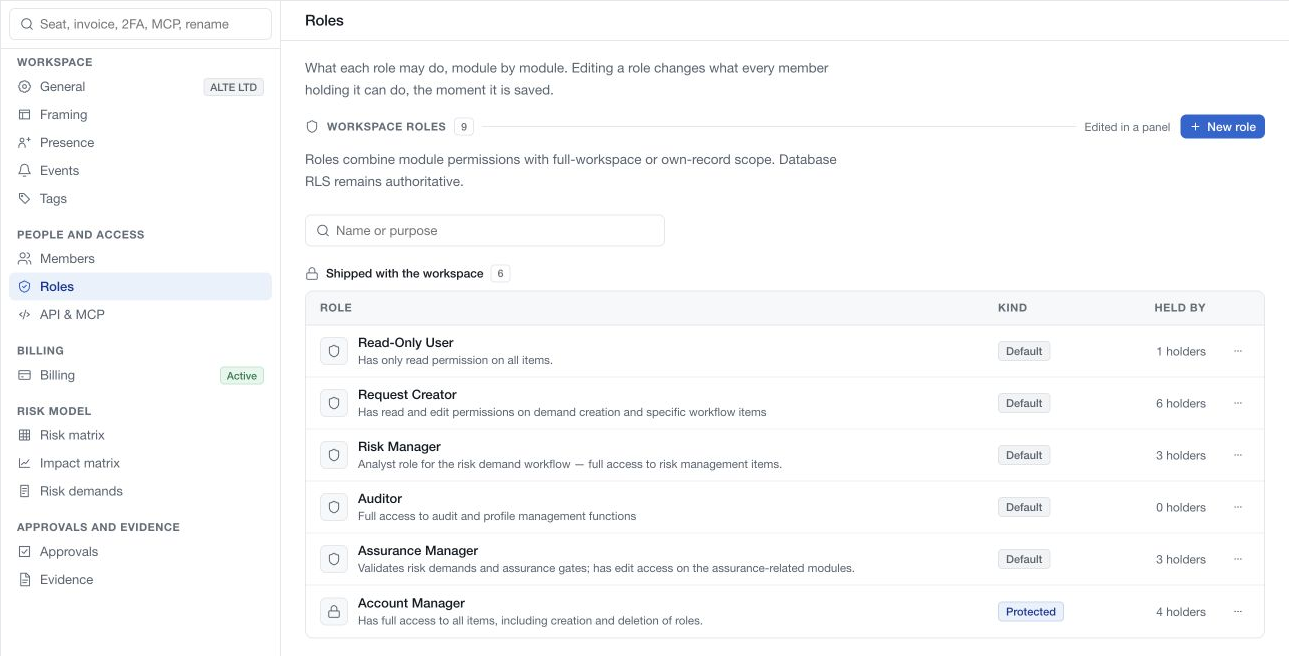
Open Settings → Roles to inspect the permissions granted by each role. The list separates roles shipped with the workspace from custom roles and shows how many holders each role has. Select a role name or View permissions to open its permission details.
Understand combined access
A member can hold several roles. Their grants combine: a role with less access does not cancel a broader grant from another role. To reduce access, review every assigned role as well as any record-specific collaboration rights.
Workspace ownership and the protected Account Manager role carry broad administrative access. Some operations, including ownership transfer, have additional restrictions. API and MCP also require their own approvals and access settings; a role alone does not enable either service.
Read permission levels
| Level | Purpose |
|---|---|
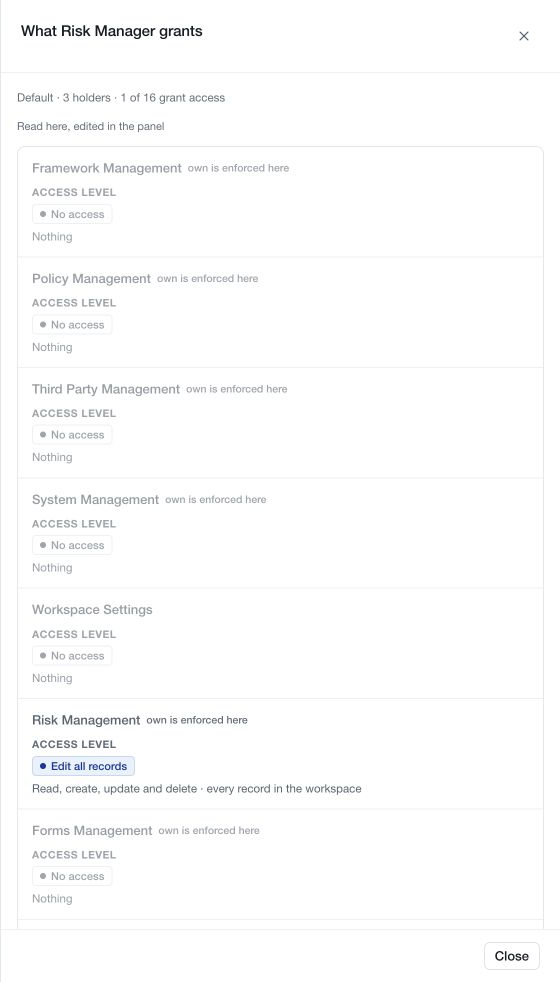
| No access | This role grants no access to the capability. Another role or an explicit collaboration grant may still provide access. |
| Read | Read records available within the applicable workspace and record rules. |
| Edit own records | Create and manage records within the capability's supported own-record scope. |
| Edit all records | Broad read, create, update and delete permissions for the capability, subject to its workflow and record rules. |
Edit own records appears only where supported. Ownership, creation and explicit participation can have different meanings across modules; follow the relevant module's access rules. Workspace-wide settings and reference configuration do not have a personal record scope.
Approval requirements, record state and workspace capabilities still apply. An edit grant does not automatically approve a policy version, bypass a demand review or make an unavailable integration ready.
Create a custom role
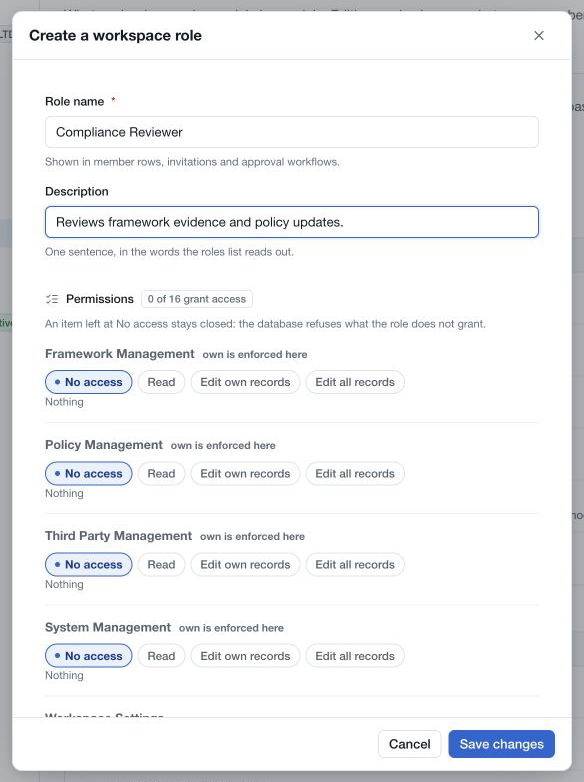
- Choose New role.
- Give it a clear name and a short description of the responsibility it supports.
- Review every capability. New roles begin with No access.
- Select the appropriate level for each required capability.
- Choose Save changes and verify the role in the catalogue.
- Assign it through Settings → Members or the invitation form.
Creating a role does not assign it to anyone. Editing an assigned custom role changes what its holders can do as soon as the save succeeds. Cancel an unsaved editor to leave the definition unchanged.
The current role catalogue exposes editing and deletion for custom roles. Inspect shipped and protected roles through their permission details; use a custom role when a different permission set is needed. A custom role cannot be deleted while a member or invitation still uses it.
Separate related capabilities
Databases Management governs Controls and Threats reference libraries. Catalog Management governs configuration vocabulary. Profile Management concerns the workspace's business context. Prompt Management and Integration Management govern those respective modules.
Policy Confidential Details controls access to the policy assurance layer in addition to policy content permissions. Review the policy guide when defining an employee reader role, and use an appropriate restricted location for information requiring stronger separation.
Workflow responsibilities are configured separately. For example, Risk demands selects roles for analyst and assurance duties. Define the workspace role first, assign suitable members, then configure the workflow gate.
Review roles after job changes and periodically during the programme. A familiar role name is not a substitute for checking its actual permission details.