

The workspace's matrices provide shared assessment scales. Settings → Risk matrix configures the scoring grid; Settings → Impact matrix defines what severity means within each impact domain. Review both before asking the team to assess risks.
Review the scoring grid
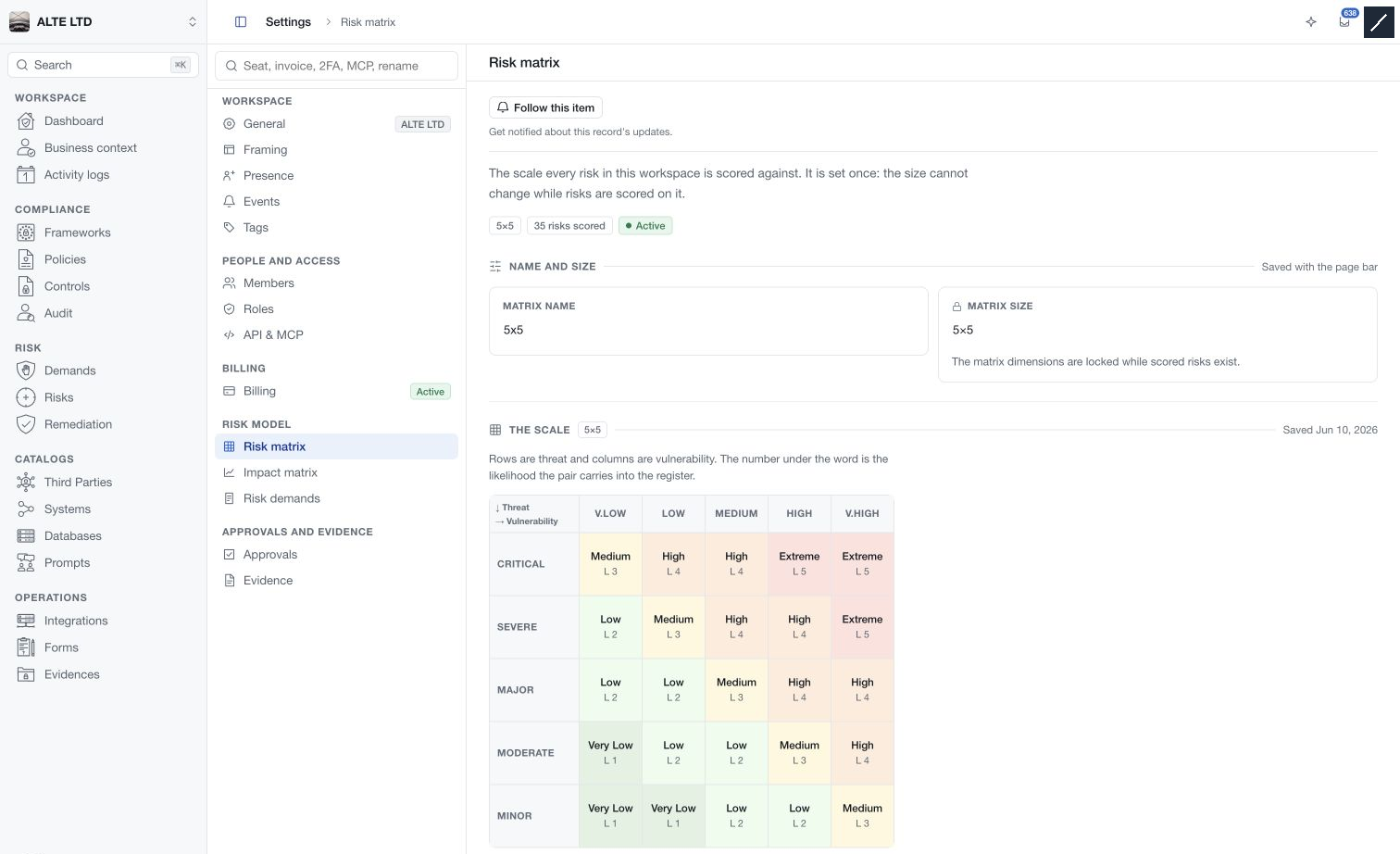
Open Risk matrix and check its name, dimensions, active state and reported usage. The page identifies its row and column axes. Each cell displays a word and the numeric likelihood it carries into the register.
When no active matrix exists, the editor starts with an unsaved 5×5 draft. The current editor supports dimensions from 3×3 to 7×7 before scored risks depend on the configuration. Once scored risks exist, the dimensions are locked; the page also blocks deletion of a matrix in use.
Edit a cell
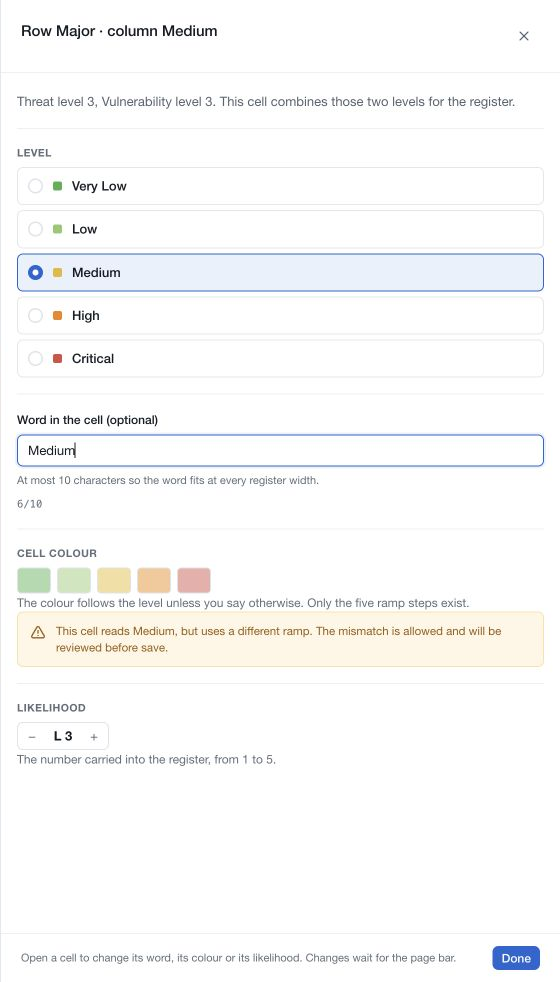
- Select the relevant row-and-column intersection.
- Review its level, optional cell word, colour and likelihood.
- Make the intended edits within the limits displayed by the drawer. The optional word allows at most 10 characters.
- Close the cell editor when finished, then use the page save bar to save pending matrix changes.
The colour normally follows the selected level. If a different colour is allowed, the editor highlights that mismatch for review. Do not use colour alone to interpret a score: read the level and numeric value as well.
Matrix words also relate to the impact configuration. Keep the scale consistent and review dependent definitions when changing it. Discarding pending edits does not delete the active matrix; the separate deletion action has its own checks and confirmation.
Define impact bands
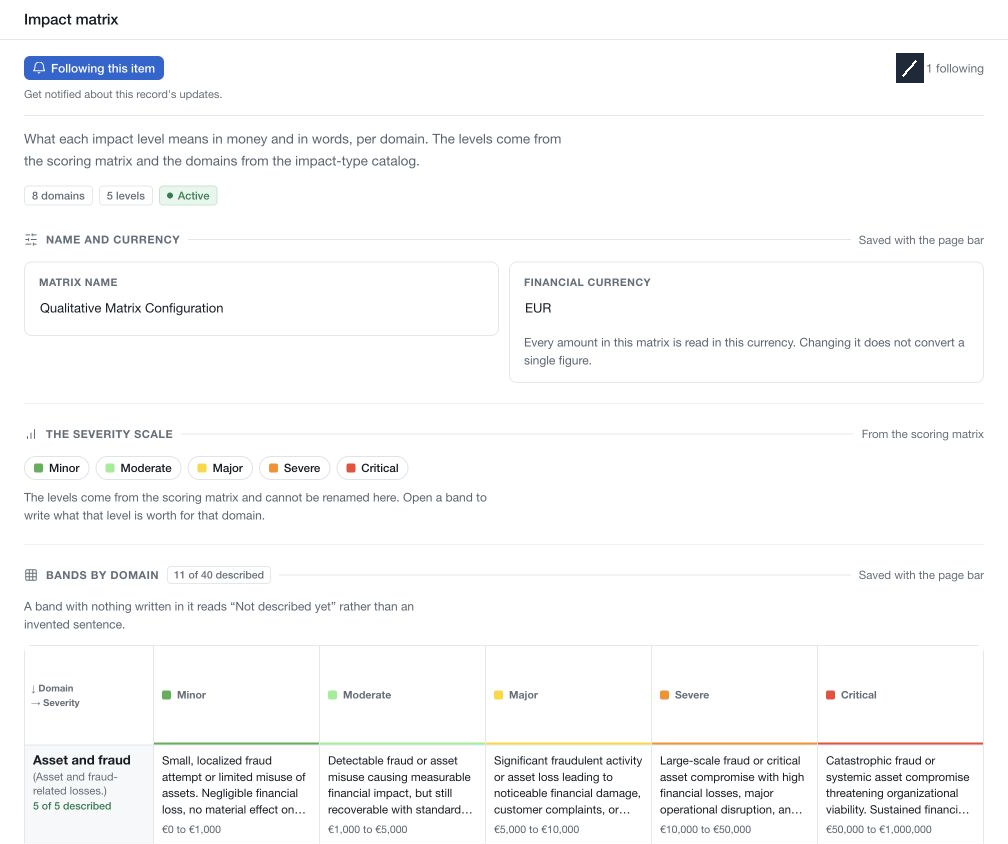
Open Impact matrix after saving the scoring matrix. The severity levels come from the scoring configuration; impact domains come from the workspace's impact-type catalogue.
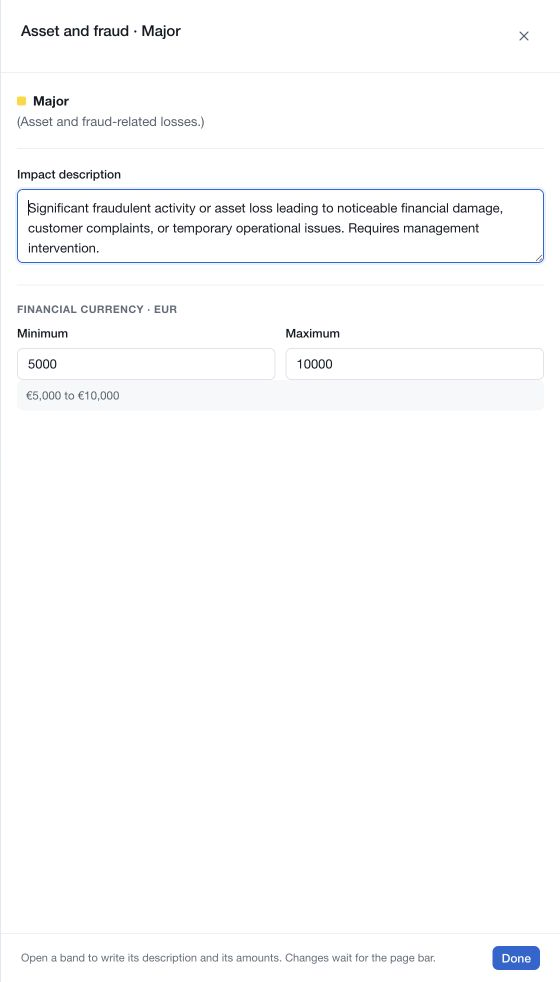
Select a domain-and-severity band to enter its description and any financial minimum or maximum. Write criteria that assessors can apply to the organisation's actual operations. A band without a description appears as Not described yet; a blank band is not a verified absence of impact.
Review the matrix's currency before entering amounts. Changing the currency changes how the values are interpreted and displayed; it does not convert the amounts. Review every financial band if the currency changes.
Save pending impact-band changes with the page bar. If no domains are available, review the relevant catalogue under Databases → Configuration. Removing the impact configuration is separate from deleting that catalogue.
Check the result with the assessment team
After saving, revisit the matrix and confirm the intended labels, values and band descriptions. Use a representative scenario to agree how the team will interpret the criteria. A configured matrix supports consistent judgement; it does not replace evidence, assumptions or a recorded explanation of the assessment.