

The Workspace Settings area lets you configure each CSFaaS workspace independently, so every workspace matches the team, processes and maturity of the organisation it serves. Open it from Settings in the left menu.
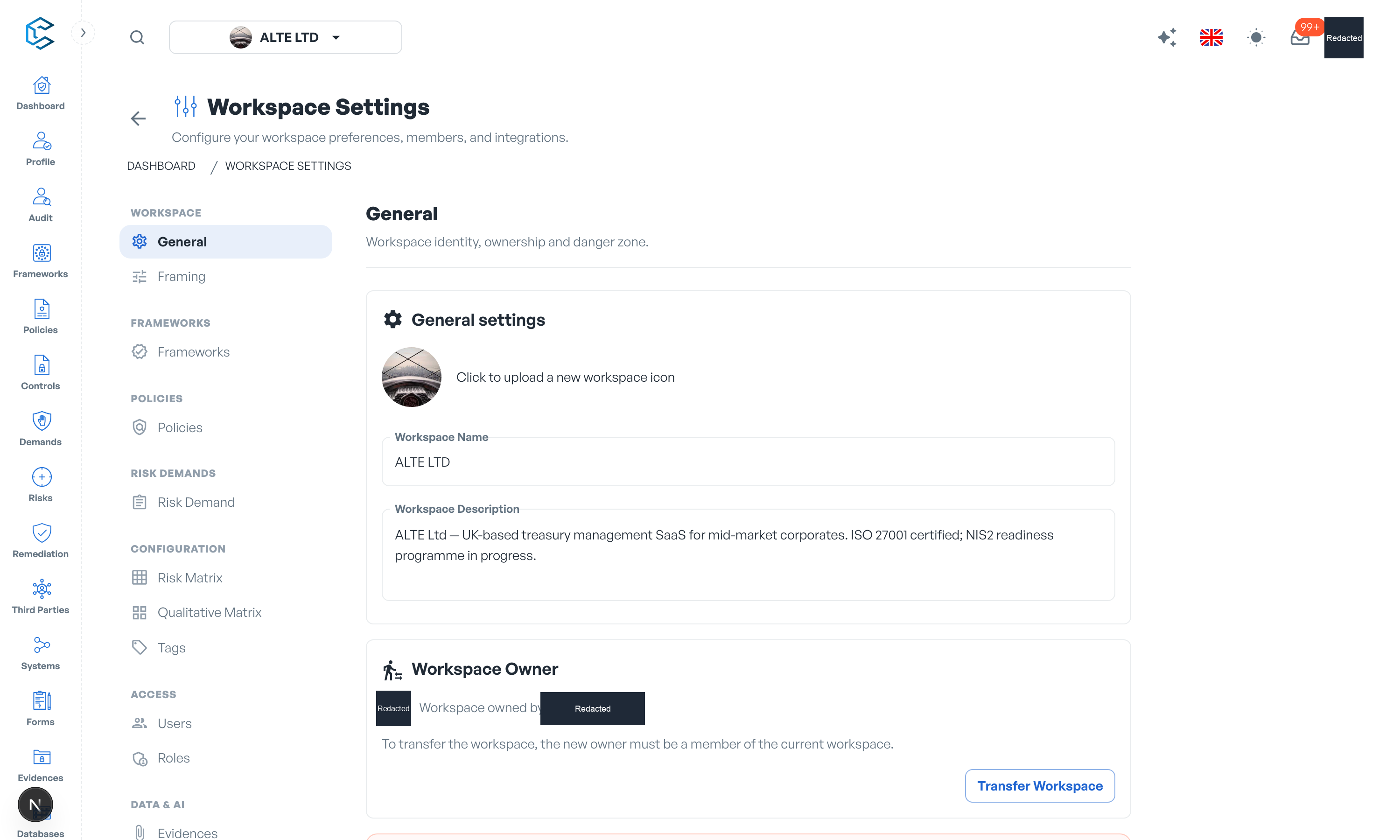
Settings are organised as a left sidebar of grouped sections. Select a section in the sidebar to work on it; the address bar keeps track of where you are, so you can bookmark or share a direct link to any section.
1. Settings Sections
The sidebar contains the following sections:
| Group | Section | What it covers |
|---|---|---|
| Workspace | General | Workspace identity, ownership transfer and the danger zone. |
| Workspace | Framing | Choose which capabilities are available across this workspace. |
| Frameworks | Frameworks | Approval workflows for framework deletions and new framework versions. |
| Policies | Policies | Approval workflows for policy deletions and new policy versions. |
| Risk demands | Risk Demand | The demand review process, reviewer roles, validation modes, notification recipients and default SLAs per priority. |
| Configuration | Risk Matrix | Define the quantitative risk matrix used by risk assessments. |
| Configuration | Qualitative Matrix | Define the qualitative impact matrix per impact domain. |
| Configuration | Tags | Create and manage every tag used across your workspace. |
| Access | Users | Invite members, change their roles and manage their status. |
| Access | Roles | Define roles and the permissions each one grants. |
| Data & AI | Evidences | Allow evidence file storage, or restrict evidence to external links only. |
| Data & AI | API & MCP | Create API keys, manage workspace API access and connect AI assistants over MCP. |
| Billing | Billing | Seat usage and cost, add-ons, payment details and invoices. |
Workspace catalogues (the reference lists behind dropdowns and properties) are no longer edited here: they live in the Databases module, under the Configuration Catalogs tab. See the Catalog Properties Settings pages of this section for details.
2. How Changes Are Saved
Edits you make on a settings page collect into a single floating save bar at the bottom of the screen. Review your pending changes, then click Save to apply them all at once, or Discard to revert. The save bar also guards navigation: if you try to leave the page with unsaved changes, CSFaaS asks you to confirm first.
Some controls are one-click quick actions that apply immediately, without passing through the save bar. Their tooltip reads Applied immediately so you always know which behaviour to expect.
3. Permissions and the Demo Workspace
Access to this area is governed by the Workspace settings permission in your roles:
- You need read access on Workspace settings to open the page at all.
- If any edit permission is missing, the whole page becomes read-only and a warning banner explains why.
- The workspace owner and members holding the Account Manager role always have full access.
In your personal demo workspace, content is fully editable but workspace administration (users, roles, billing, framing) stays locked. A "Demo workspace" banner reminds you of this; create your real workspace to configure everything.
Tip: the following pages walk through each section one by one, in the order they appear in the sidebar.
Privacy note. Personal details in this revision have been removed, masked or replaced for privacy. The original is retained privately.