

The Roles section controls what each workspace member can see and do. A member can hold one or more roles; CSFaaS combines them and applies the strongest permission granted for each area. This makes it possible to keep everyday access narrow while giving selected people the extra capabilities their responsibilities require.
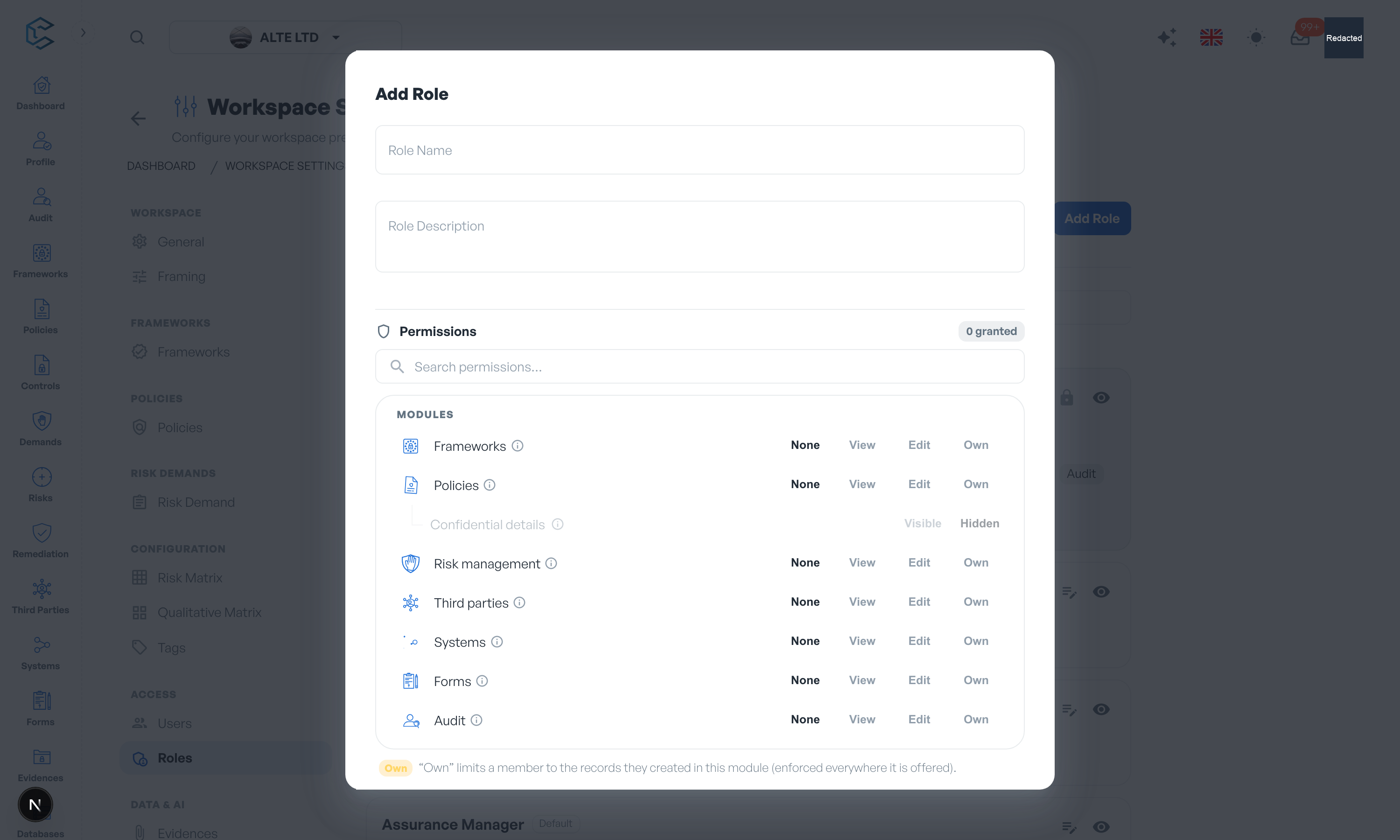
Where to configure roles: open Settings → Roles. Only a member with the necessary Workspace settings permission can create roles, change permissions, assign roles or delete a custom role.
1. How access is calculated
Permissions are role-based and additive:
- One member can hold several roles. CSFaaS takes the union of their permissions.
- The strongest grant wins. For example, if one role gives Policies View and another gives Policies Edit, the member can edit policies. Full access also wins over Own.
- Removing a role takes effect for every member who holds it. Their remaining roles are recalculated immediately.
- The workspace owner retains full access. The protected Account Manager role provides the same full workspace administration model for assigned members.
- Database Row Level Security is the authorization boundary. Hiding a navigation item is not the security control; direct data requests are checked against the same workspace and role permissions.
Explicit collaboration can add narrow access without broadening the whole role. For example, a stakeholder may be allowed to read a particular system or third party, and a person invited into a risk-demand round can access that demand. Those record-specific grants do not turn into general module access.
2. Modules, Configuration and Administration
The headings in the matrix organise permission items; they do not change how permissions are evaluated.
| Group | What it contains | When to grant it |
|---|---|---|
| Modules | Frameworks, Policies, Risk management, Third parties, Systems, Forms, Audit and Business profile. | Operational work on GRC records. |
| Configuration | Databases, Catalogs and Events log. | Maintaining shared reference data or reviewing workspace activity. Databases covers the controls and threat/attack databases; Catalogs covers configurable reference catalogues. |
| Administration | Workspace settings. | Members, roles, billing and workspace-level configuration. Grant this sparingly. |
Catalogs and Databases are permission items, not predefined roles. If someone should manage only one of them, create a tailored role with that one permission.
3. None, View, Edit and Own
| Level | What it allows | Typical use |
|---|---|---|
| None | No permission rows are granted for that item. The related navigation and actions are unavailable, and data-layer policies deny general access. | A focused role that should not enter the module. |
| View | Read-only access to records allowed by the workspace and any record-specific rules. | Reviewers, executives and internal readers. |
| Edit | Full create, read, update and delete permission across the module. | Module owners and operational teams. |
| Own | Create, read, update and delete permission limited to records the member owns or created. Child records inherit the scope of their parent record. | Contributors who need autonomy without workspace-wide visibility. |
Own is available for Frameworks, Policies, Risk management, Third parties, Systems, Forms and Audit. It is especially useful for requesters: with Risk management set to Own, they can work with demands they requested and demands they were explicitly invited to, without receiving full visibility of every demand in the workspace.
Business profile, Databases, Catalogs, Events log and Workspace settings do not offer Own because those areas are workspace-wide rather than naturally owned by one creator.
4. The six starting roles
Every new workspace starts with one protected system role and five editable default presets:
| Role | Starting permissions | Best fit |
|---|---|---|
| Account Manager | Full access to every permission item, including roles and settings. | Workspace administration. The creator receives it automatically. It is locked and cannot be edited or deleted; at least one member must hold it. |
| Risk Manager | Risk management: Edit. | People who manage every risk demand and assessment. |
| Request Creator | Risk management: Own. | People who raise and follow their own requests without seeing the full risk register. |
| Read-Only User | Frameworks, Policies, Third parties, Systems, Risk management and Forms: View. Policy confidential details: Visible. | Broad workspace readers. |
| Assurance Manager | Frameworks, Policies, Third parties, Systems, Risk management and Forms: Edit. Policy confidential details: Visible. Workspace settings: View. | GRC and assurance leads working across the core modules. |
| Auditor | Audit: Edit. Business profile and Frameworks: View. | People planning audits, recording findings and reviewing organisational context. |
The five default presets can be fine-tuned, so their effective permissions may differ after an administrator changes them. Their names are fixed and they cannot be deleted because workspace workflows rely on those identities. The Account Manager is fully locked.
5. Policies: Visible or Hidden confidential details
Policies contains a nested Confidential details switch:
- Visible lets the role see the policy's GRC assessment layer, including evidences, internal comments, maturity/compliance information and evaluation results.
- Hidden keeps policy content readable but removes that assessment layer from the experience.
A common pattern is Policies: View with Confidential details: Hidden. This creates a policy viewer for employees who should read and adopt approved policies without seeing internal assurance material. If Policies is None, the confidential switch has no effect because the parent module is unavailable.
Security note: separate policy evidence and internal-comment records are protected by database policies. Maturity and evaluation values stored on the policy record are hidden by the application interface; this setting is not field-level encryption. Do not use those fields as a vault for secrets that require cryptographic or column-level separation.
6. Useful tailored roles
Use custom roles when a person's responsibility is narrower than a starting preset. Begin with everything set to None, then add only what the job needs.
| Example role | Suggested permissions |
|---|---|
| Policy Viewer | Policies: View; Confidential details: Hidden. |
| Controls & Threat Database Manager | Databases: Edit. Catalogs: None or View if reference context is also required. |
| Catalog Manager | Catalogs: Edit. Databases: None or View. |
| Events Reviewer | Events log: View. Access can still depend on the workspace's enabled audit-log features. |
| Business Profile Maintainer | Business profile: Edit; other modules: None or View as needed. |
| External Auditor | Audit: Edit; Frameworks and Business profile: View; all unrelated modules: None. |
Prefer several clear roles over one oversized role. Because grants are additive, you can combine “Catalog Manager” with “Policy Viewer” for one person without broadening either role for everyone else.
7. Create, assign and review roles
- Open Settings → Roles and select Add Role.
- Use a clear name between 3 and 20 characters and an optional description up to 200 characters.
- Set every permission item deliberately. Use the row information icons to confirm what an item controls.
- Save the role, then assign it when inviting a member or from that member's role settings. Every active member must keep at least one role.
- Review assignments periodically and after job changes. Remove unused custom roles only after they are no longer assigned to members or pending invitations.
Risk workflow Analyst and Assurance duties are not extra workspace roles. They point to roles you configure in the Risk Demand settings: create the appropriate workspace role first, then select it for the workflow duty.
API and MCP access follows the same model. A manually issued API key acts as its bound user and follows that user's live roles. OAuth connections are limited to the role subset approved during consent and do not receive the workspace-owner bypass.
Privacy note. Personal details in this revision have been removed, masked or replaced for privacy. The original is retained privately.