

Risk assessments in CSFaaS score risks against matrices you define once per workspace. Two settings sections govern them: Risk Matrix (the quantitative grid used to compute risk levels) and Qualitative Matrix (the impact descriptions behind each severity level). Together they make every assessment in the workspace speak the same language.
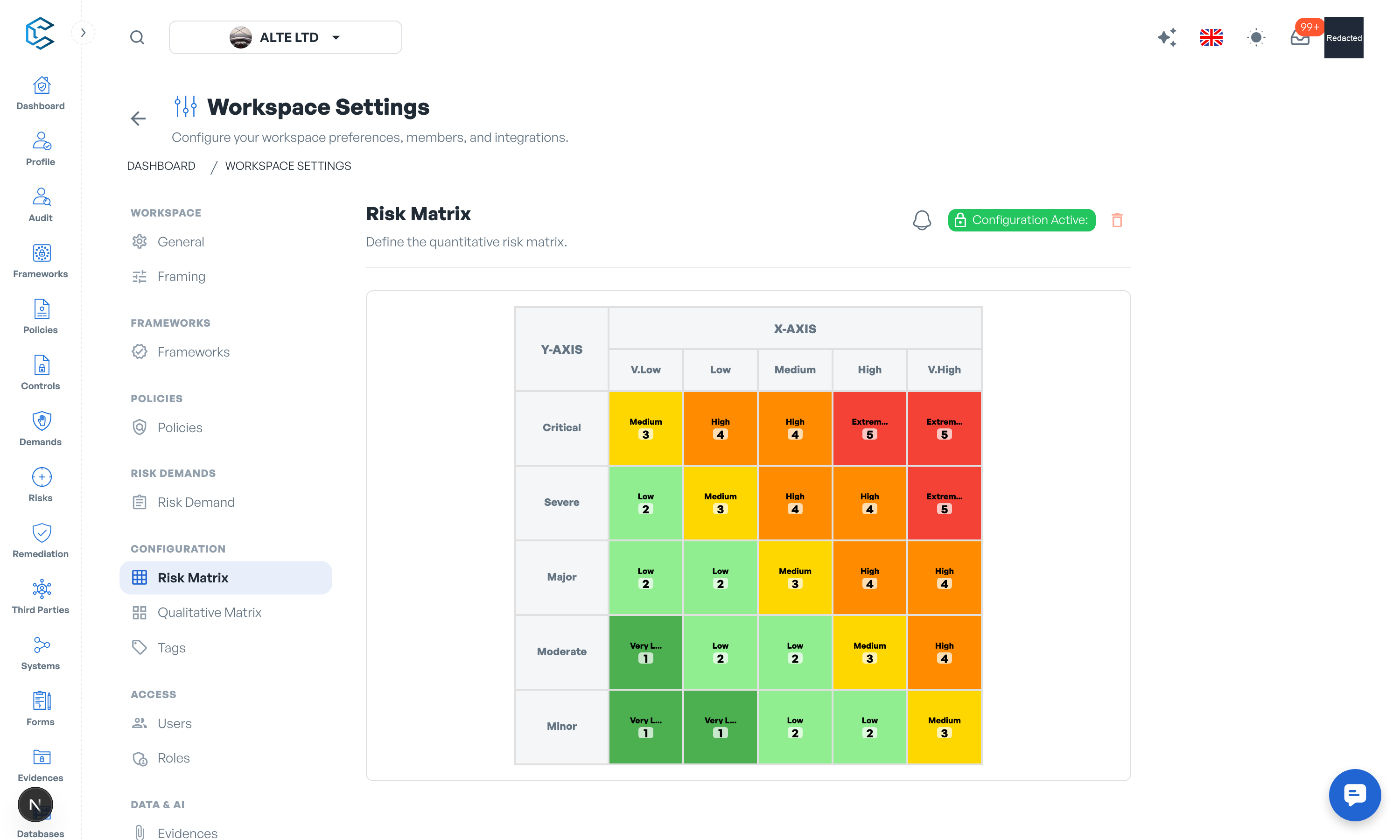
1. The Risk Matrix
The Risk Matrix section defines the grid that risk assessments use to score inherent, current and target risk:
- Size: choose a 3x3, 4x4 or 5x5 matrix.
- Axes: the vertical axis carries your threat levels, the horizontal axis your vulnerability levels; each label is editable.
- Cells: each cell represents the intersection of a threat level and a vulnerability level. You customise its text (the risk level it represents), its colour, and its likelihood value (from 1, low probability, to 5, high probability), which feeds the risk calculation.
Presets are provided as starting points, and every cell can be fine-tuned from the cell customisation drawer before you create the matrix.
Warning: the risk matrix is a one-time setup. Once created, its configuration is permanent: review the grid carefully before confirming with Create Permanent Matrix.
2. Changing the Matrix Size
Because every assessment references the grid, its size can only change by deleting the current configuration, and only while no risk assessments depend on it:
- The Change Matrix Size action first checks your existing risk assessments.
- If none use the matrix, you can delete the configuration and create a new one with the desired dimensions.
- If assessments are found, the size is locked; you can still modify cell values, colours and labels. If a size change is absolutely necessary, contact support.
3. The Qualitative Matrix
The Qualitative Matrix section (available once a risk matrix exists) turns each severity level into concrete, organisation-specific criteria. For every impact domain in your Impact Types catalogue, you define:
- Impact descriptions: what each severity level means in that domain, with optional financial thresholds (minimum and maximum amounts, in your chosen currency).
- Likelihood descriptions: what each likelihood level means, with optional probability ranges in percent.
Assessors then rate impacts against these shared definitions instead of gut feeling, which keeps scoring consistent across the team.
4. Keeping Up with Catalogue Changes
The impact domains come from the Impact Types catalogue (Databases, Configuration Catalogs). If the catalogue changes after your configuration is saved, the section flags each difference (Added, Modified, Removed, Hidden) and lets you apply the updates one by one, so your matrix never drifts silently out of sync with your reference data.
Note: both matrices are used everywhere risks are scored: risk assessments in demands, the risk registry and the dashboard heat map all read the same configuration.
Privacy note. Personal details in this revision have been removed, masked or replaced for privacy. The original is retained privately.