

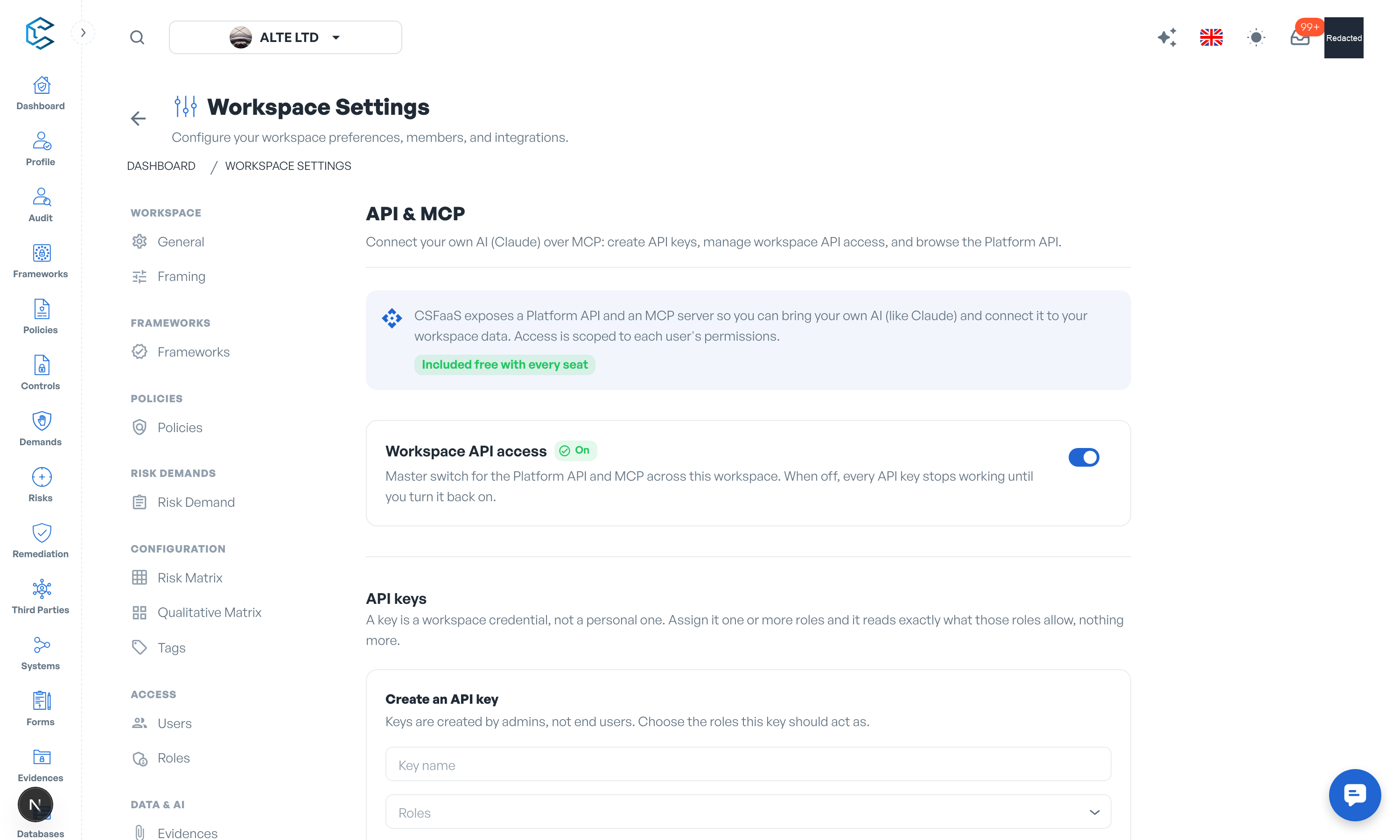
CSFaaS exposes a Platform API and an MCP server so you can bring your own AI (like Claude) and connect it to your workspace data, or read your compliance data from your own scripts and tools. The API & MCP section of Workspace Settings is where you manage that access. It is included free with every seat.
1. What You Get
- A read-only REST API at api.csfaas.com covering frameworks, policies, controls, risks, demands, audits, systems, third parties, forms and evidences. The full interactive reference lives at api.csfaas.com/v1.
- An MCP server at mcp.csfaas.com, so AI assistants such as Claude can query your compliance programme conversationally. Its overview and setup guide live at that address.
Both surfaces are read-only and every request is scoped by permissions: a key can never read more than the roles it carries allow.
2. Workspace API Access
The Workspace API access switch is the master kill switch for the Platform API and MCP across this workspace. When off, every API key stops working until you turn it back on; the keys themselves are kept, so re-enabling restores integrations without re-issuing anything.
Changing the switch requires the Workspace settings edit permission.
3. API Keys
Access is authenticated by API keys. Three properties define the model:
- Keys act as a user: an admin binds a key to a workspace member, and the key reads exactly what that user can, nothing more. It follows the user's live permissions, so demoting or removing the user immediately narrows or cuts off the key.
- Keys are created by administrators: only workspace admins, or members with Settings access, can create API keys, and creating one requires two-factor authentication on your account. Give the key a recognisable name (for example "Claude on my laptop") and choose the member it acts as.
- The secret is shown once: copy the key when it is revealed; for your security it will not be shown again. If you lose it, revoke it and create a new one.
The section lists Your API keys and All workspace keys (every key issued by members of this workspace), with creation and last-used dates. Any key can be revoked, which immediately cuts off whatever uses it, or deleted entirely. Both actions are irreversible.
Note: API keys cannot be created in the demo workspace. Create your own workspace to connect the API.
4. Connecting
The Connect quickstart card gives you everything needed to point a client at the API:
- The base URL and the authentication header to send with each request.
- A ready-to-copy request that answers "who am I?", to verify a key works.
- An MCP server configuration block to paste into your MCP client (for example Claude Desktop), replacing the placeholder with your API key.
The Documentation cards link to the two hosted references: the full Platform API reference (authentication, permission model, endpoints and examples) and the MCP guide with the tool catalogue and setup instructions for Claude, Cursor or any MCP client.
Warning: treat an API key like a password. Never share it, and revoke any key you suspect has leaked.
Privacy note. Personal details in this revision have been removed, masked or replaced for privacy. The original is retained privately.