

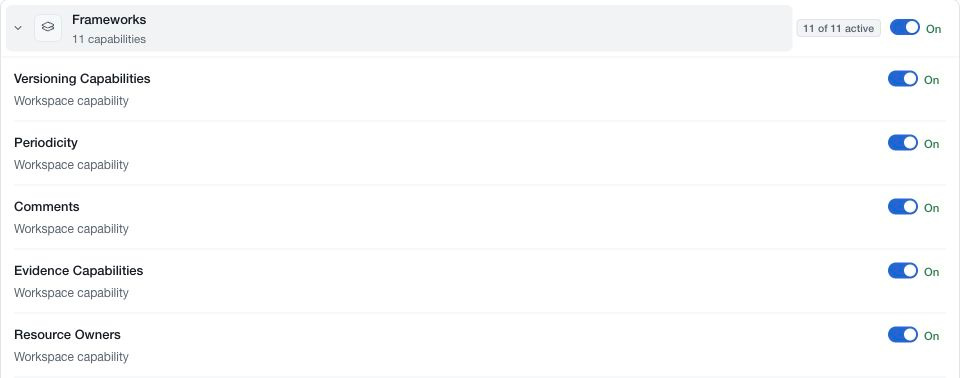
Settings → Framing controls the capabilities offered in your workspace. Expand a section to inspect its individual options. Read the capability name and description, then change its switch when you are ready for the change to affect the workspace.
Sections and individual options
A section has its own availability control and can contain several capabilities. Turning a section off hides that area while retaining its underlying capability selections. Turning it back on makes those selections relevant again.
Individual options enable supported fields, panels or actions. Examples include ownership, comments, applicability, weighting, links and assessment detail. The exact options depend on the module; enabling an option in one area does not configure every other module.
Changes apply immediately. There is no final page-wide Save for a series of framing switches. Wait for each result and inspect the affected module before making a wider change.
Preserve useful information
Turning a capability off does not delete its existing records or values. It changes the workspace experience. Before hiding a field that the team relies on, review the reporting or workflow that uses it and explain the change to the people affected.
An enabled capability still requires the appropriate role permissions. Framing does not grant access to a member and does not replace an approval workflow.
Check supporting configuration
When a capability uses a catalogue, review its available values in Databases → Configuration. Risk and impact criteria are configured in their respective matrix settings. Review duties and response targets are configured in Risk demands or Approvals, as appropriate.
Use Compare presets to inspect a broader starting selection. Review the changes it proposes before applying it, then adjust individual capabilities to match your programme.