

The CSFaaS interface has three permanent areas: the header across the top, the left menu for navigation, and the central page where the selected module is displayed. Two app-wide behaviours complete the picture: the global save bar and live collaboration.
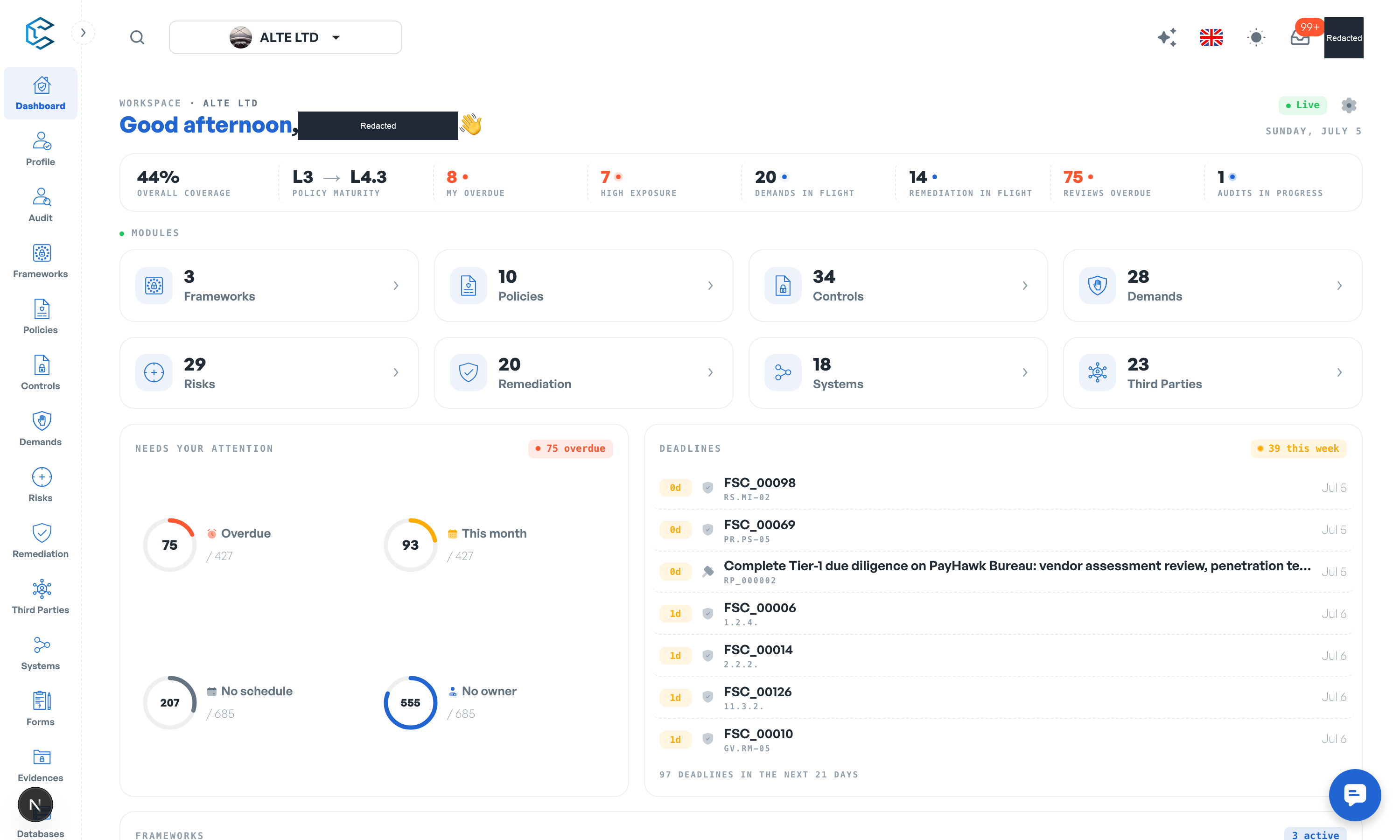
1. The header
From left to right, the header gives you:
- Search: quickly locate content across the application.
- Workspace picker: shows the current workspace and lets you switch to another or select Add Workspace. Your personal demo workspace carries a Demo chip.
- Billing status: a pill shown to Account Managers only when billing needs attention; it links to the Billing settings.
- AI via MCP: the sparkles icon explains how to connect your own AI assistant through the CSFaaS API and MCP server.
- Language selector: English, French or Spanish.
- Theme toggle: light or dark mode.
- Inbox: the bell opens your notification Inbox; a badge shows the unread count.
- Account menu: your avatar opens My Profile and Logout.
2. The left menu
The left menu lists the modules of the current workspace, in this order:
- Dashboard and Profile
- Audit
- Frameworks
- Policies and Controls
- Demands, Risks and Remediation
- Third Parties and Systems
- Forms
- Evidences
- Databases
- Settings
The menu adapts to your context: modules disabled in Settings, Framing are hidden, as are modules your role cannot read.
3. The central page: the compliance cockpit
After login the central page opens on the Dashboard, a compliance cockpit that reads the same data sources as the module pages, so its numbers always match the modules. It greets you with your workspace name, a Live badge, and:
- A KPI strip: Overall coverage, Policy maturity, High exposure, Demands in flight, Remediation in flight, Reviews overdue, Audits in progress and My overdue.
- A Setup checklist: the recommended first steps for a fresh workspace.
- A Modules grid: count tiles for Frameworks, Policies, Controls, Demands, Risks, Remediation, Systems and Third Parties.
- Needs your attention: reviews you own that are overdue, due this month, unscheduled or unowned.
- Deadlines: everything due in the coming weeks, such as control reviews and remediation plans.
- Module panels: Frameworks, Policy progression, Audits, the risk heat map with Top risks, Remediation and Demands.
- Activity: the live feed of recent workspace activity.
Every panel deep-links into its module, and panels for modules you cannot read are hidden. As you navigate, the central page displays whichever module you select in the left menu.
4. Saving your changes
Page-level edits are collected by one floating save bar at the bottom of the screen. As soon as a page has pending edits it shows Unsaved changes with Save and Discard actions, and it warns you before you navigate away with unsaved work. Drawers and creation forms keep their own submit buttons, and one-click quick actions apply immediately (their tooltips say Applied immediately).
5. Working together live
CSFaaS is built for teams working at the same time:
- Live data: on supported module pages, colleagues' changes appear without reloading.
- Live cursors and presence: see teammates' cursors and avatars on the elements they are working on (administrators can switch both off in Settings, Users).
- Collaborative text: supported rich-text fields co-edit like a shared document.
- Editing hand-over: pages without live sync show a presence pill in the header; one person edits at a time and can hand over control.
Privacy note. Personal details in this revision have been removed, masked or replaced for privacy. The original is retained privately.