

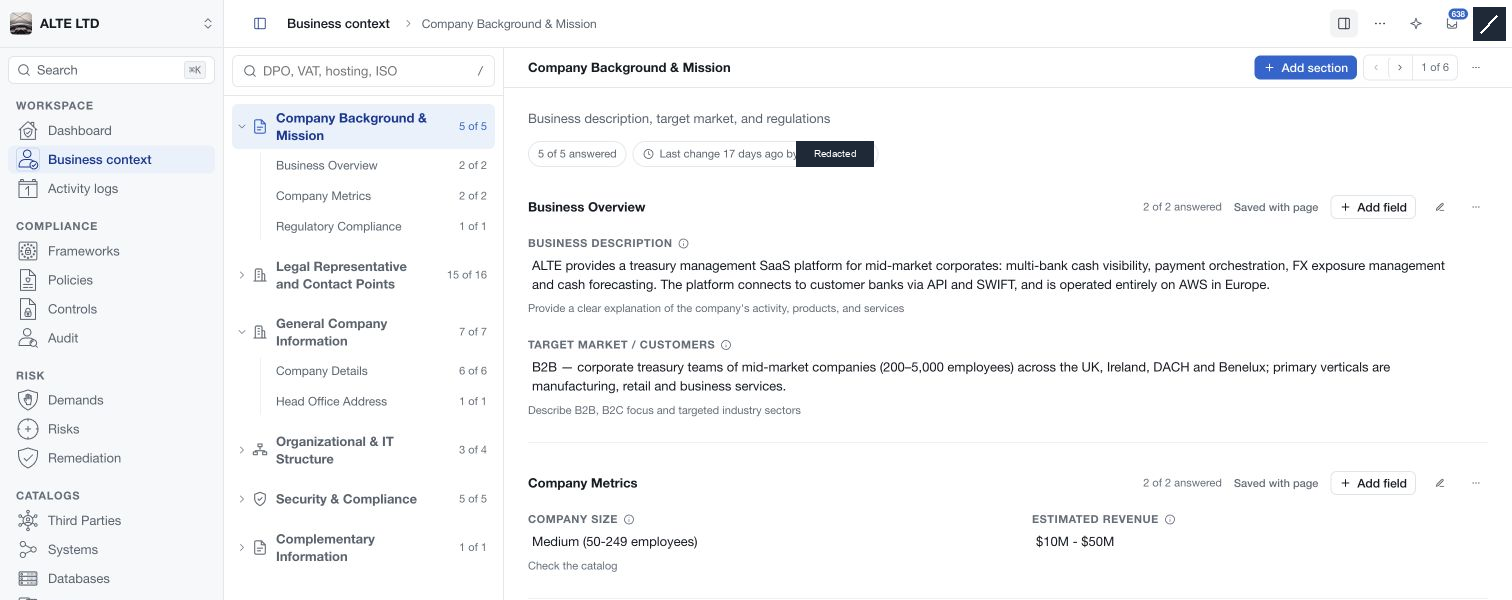
Open Business context in the Workspace section of the navigation. It holds the organisation's background, contacts, operating environment and security context. Use it to give reviewers a shared understanding of what the organisation does and what its security programme needs to support.
Navigate the profile
The left index lists sections and their groups. Select a section to see all of its groups, or a child group to focus the reading area. The header identifies the current location. Use the panel controls to show or hide the section index and change history.
Search the index by field labels, helper text or information tooltips. For example, search for a topic such as hosting or a regulatory identifier. The previous and next controls move through matching sections. Clear the search when a section appears to be missing.
Completion counts refer to answered visible fields. A complete profile means those fields have values; it does not establish that the answers are current, accurate or independently verified.
Enter and save answers
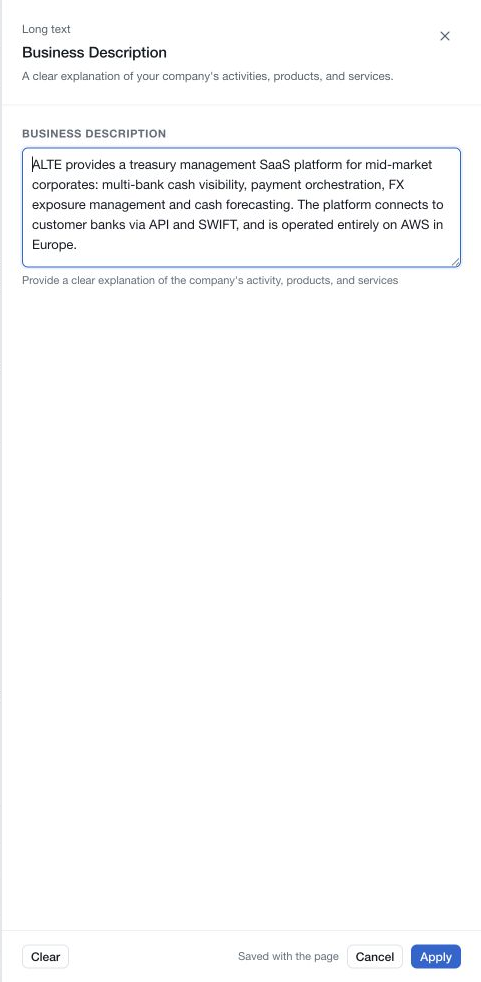
Select a field's value to edit it. The control depends on the field type: text, date, choice, country, yes/no, file or another supported format. Read its helper text before answering.
Apply the field edit, then use the page's Save action to persist pending answers. Fields marked Saved with page remain pending until that save succeeds. If the save fails, keep the draft and retry using the displayed recovery control. Discard changes restores pending answers and template edits to the last saved version.
Adapt the structure
Members with the required Profile Management permissions can add sections, groups and fields, rename them, and edit field properties. Manage fields provides ordering, width, visibility and editing controls. A field can move between containers within its current section.
Structure changes share the page save with answers. Deleting a field also removes its answer when the change is saved. Deleting a group or section includes the fields and answers it contains. Read the confirmation before committing these changes.
Attach supporting documents
Use a file field to browse for or drop supporting documents. Check the accepted types and per-file limit shown by that field. The profile must have been saved once, workspace evidence storage must be enabled, and you need the required permission to create the attachment.
Uploads and document removals apply immediately. Other pending page edits remain unsaved. Discarding the page draft does not undo an uploaded or removed document. If a document operation succeeds but its field value cannot be synchronised, follow the displayed recovery instruction and confirm the final attachment list.
Review saved changes
The Change history panel shows saved changes attributable to the selected section or group, newest first. Expand the selection to its parent when looking for broader context. Some template changes are recorded at profile level without a field-level before/after description, and document activity is recorded separately; the panel explains these limits.
Use the follow control to receive updates, and Copy a link to this section to share the selected view with another authorised workspace member. When a newer saved version arrives while you have a draft, resolve the local changes before reconciling it.