

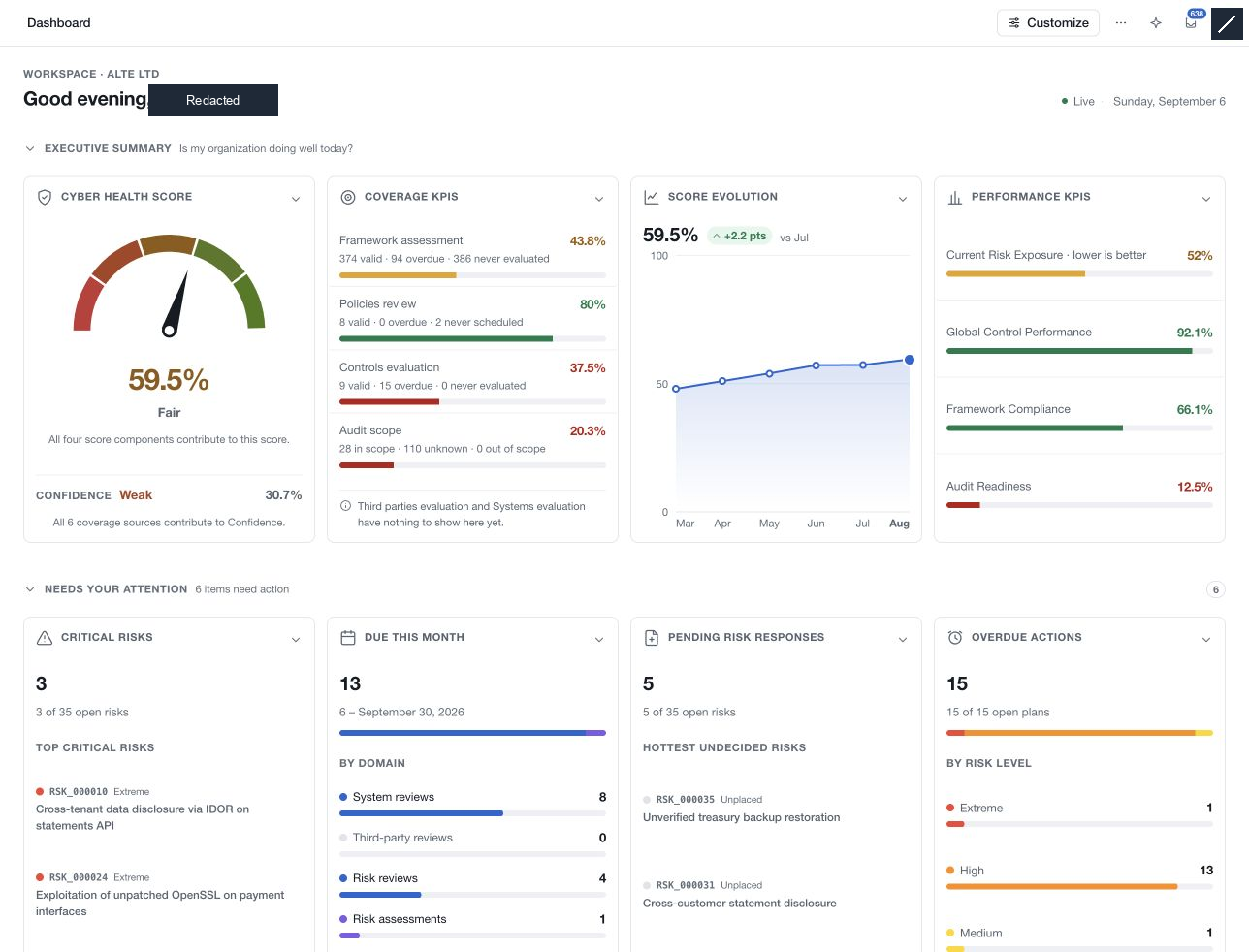
The CSFaaS interface keeps workspace navigation, module controls and the selected record in consistent areas. Learn these areas once, then use the same pattern as you move between compliance, risk and operational work.
Workspace navigation
The left navigation contains the workspace selector, global search and the module groups. Settings is at the bottom. Use Collapse the navigation to icons when you need more horizontal space; the navigation remains available through its icons and labels.
The selected workspace is the starting point for all record work. Confirm it before interpreting a dashboard, adding an item or changing a configuration. The visible modules and actions reflect your permissions.
Page header
The header identifies the current module and, when a record is open, its location. It also contains the controls relevant to that page, such as a view switch, Filter, a creation action or a version selector.
Some record pages have controls for showing or hiding the list and right-hand rail. Use these to focus on the record without navigating away. The exact panels depend on the module: the prompt record has an activity rail, for example, while an integration connection has its own connection views.
The right side of the header provides the AI access guide, Inbox and account menu. Use the account menu for the personal actions available to your session; workspace administration belongs in Settings.
Registers and record details
A register helps you find the item you need. Search within it, adjust available filters or sorting, and select a record. Check the active filters when a record seems missing. A count may describe the current view or a broader population; read its label rather than assuming every count uses the same scope.
The selected record displays its identity and relevant sections. Stable business identifiers help distinguish similarly named records. Use the record's copy or link action where available when sharing a reference with another authorized workspace member.
Some modules provide section navigation inside the record. Use it to move between longer areas such as instructions, details, assessment or linked items. On smaller screens, panel and view controls keep these areas reachable without requiring every column to remain visible simultaneously.
Drawers and editors
Actions such as creating a prompt or reviewing a provider open a focused drawer. Read its title, required fields and footer actions. Save or the named creation action confirms the operation; closing a drawer is not a substitute for saving.
Where the app retains a draft, use the unsaved-change controls to return to it or discard it deliberately. Some lightweight actions, such as adding a prompt tag, apply immediately and say so in their help text. Follow the behavior shown for that field.
When a save is pending, wait for its result. If it fails, retain the draft and use the available retry or recovery action. If the app reports a concurrent edit, compare against the latest saved record before trying to apply your changes again.
Activity and connection state
Use a record's activity stream to review recorded changes, and Activity logs for the workspace activity views available to your role. A list of recent actions is not a complete list of people currently online.
Read connectivity and refresh messages. A retained record may be the last successfully loaded version when live refresh fails. Resolve the error before treating its status as current. A loading or unavailable view is different from a confirmed empty register.