

To manage your personal information and enhance your account security, follow these steps:
Accessing Your Profile
- Click on your profile icon located at the top right corner of the page.
- Select Settings from the dropdown menu.
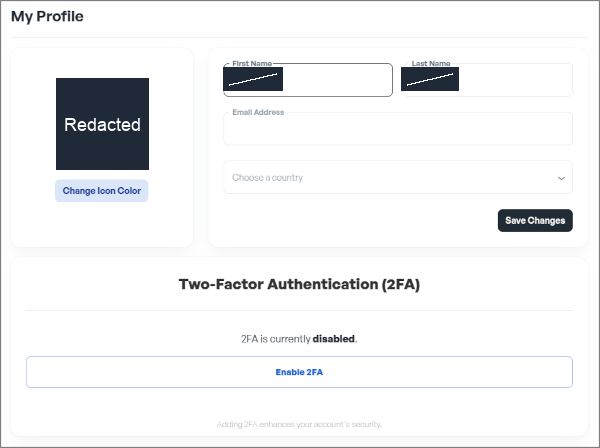
Updating Personal Information
- Name: Navigate to the Personal Information section to edit your first and last name.
- Email Address: In the same section, update your email address as needed.
- Country: Choose your country from the available options.
Changing Icon Color:
- Within the Profile Customization settings, locate the Icon Color option.
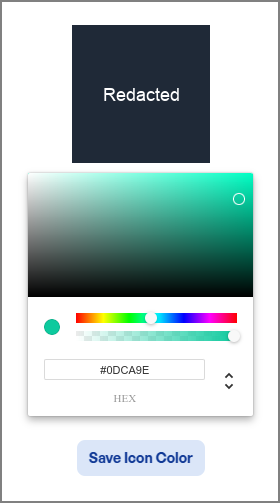
- Select your preferred color to personalize your experience.
Enabling Two-Factor Authentication (2FA)
In the Security section of your settings, find the Two-Factor Authentication option.
- Click on Enable 2FA.
- A QR code will be displayed.
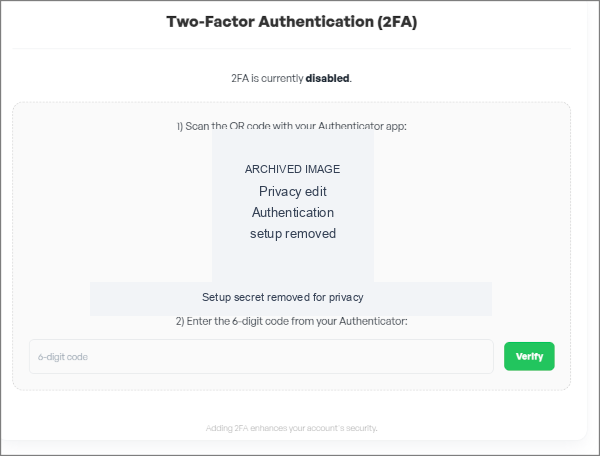
- Open your preferred authenticator app (such as Google Authenticator or Authy) on your mobile device.
- Use the app to scan the QR code.
- The app will generate a 6-digit code.
- Enter this code into the provided field to complete the setup.
Disabling Two-Factor Authentication (2FA)
- Return to the Two-Factor Authentication settings.
- Click on Disable 2FA.
- Confirm your choice when prompted.
Enabling 2FA adds an extra layer of security to your account, making it significantly more secure against unauthorized access.
Privacy note. Personal details in this revision have been removed, masked or replaced for privacy. The original is retained privately.